Governance Manager allows you to add multiple files into a GM folder from your PC/Laptop/Tablet (bulk upload).
To do this follow the steps below (your user profile must allow you to add files - contact your local GM Manager to arrange this)...
1. Navigate to the folder where you wish to load the files from your device (in the example below a new empty folder) and use the Actions > Upload Multiple Files option: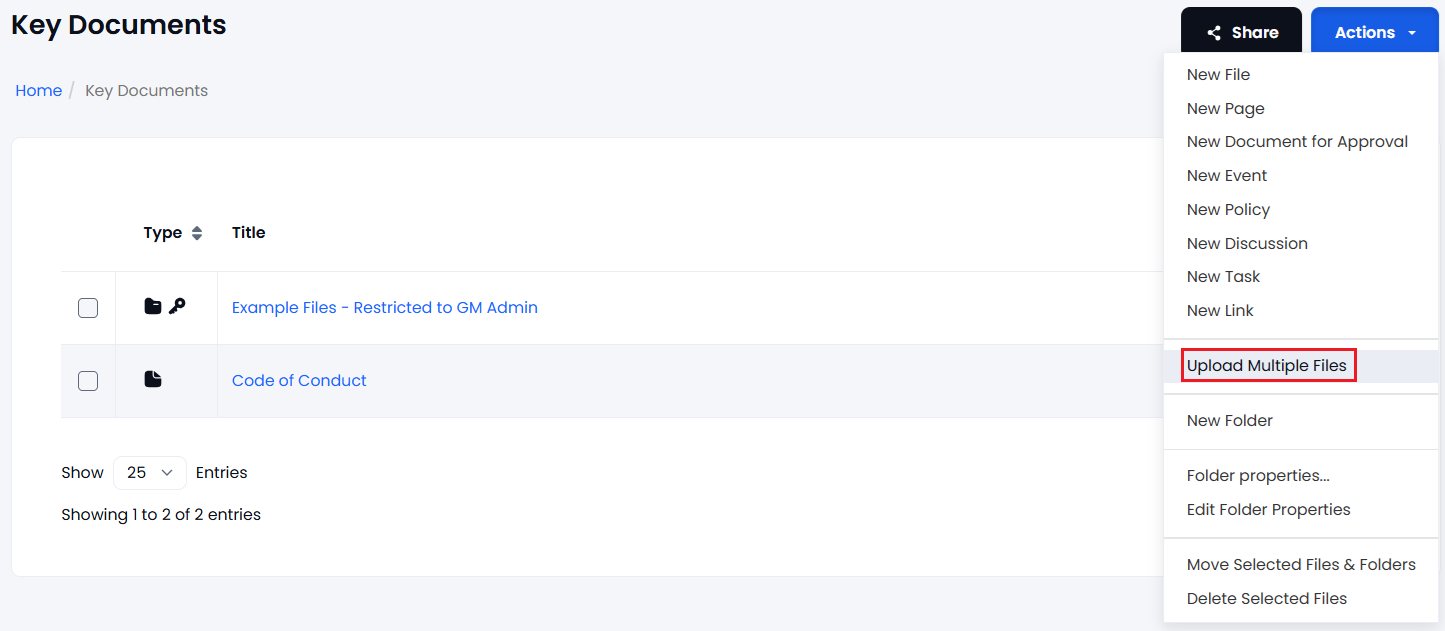
2. Select the button to upload files and select the files on your device that you wish to upload..use CTRL+CLICK to select multiple files then press 'Open'
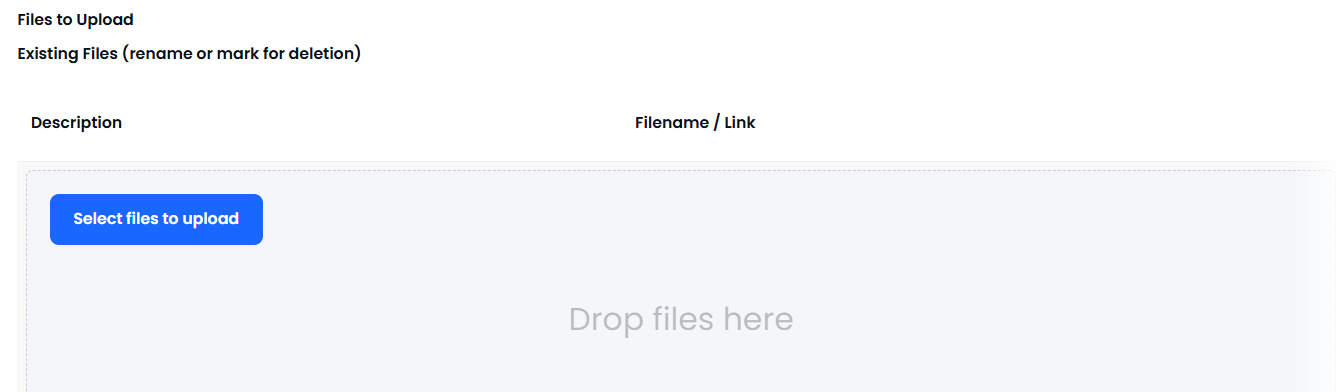
The files will appear as shown - you can amend the name of the files as it will be displayed in Governance Manager, this will not change the name of the actual file.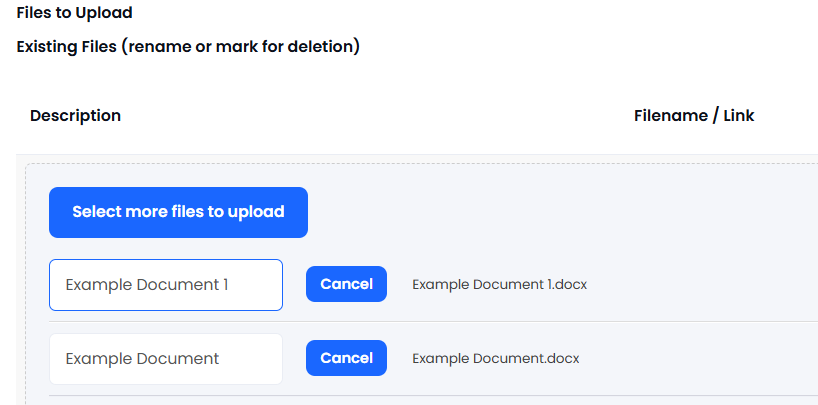
4. Press 'Upload Files' to upload:
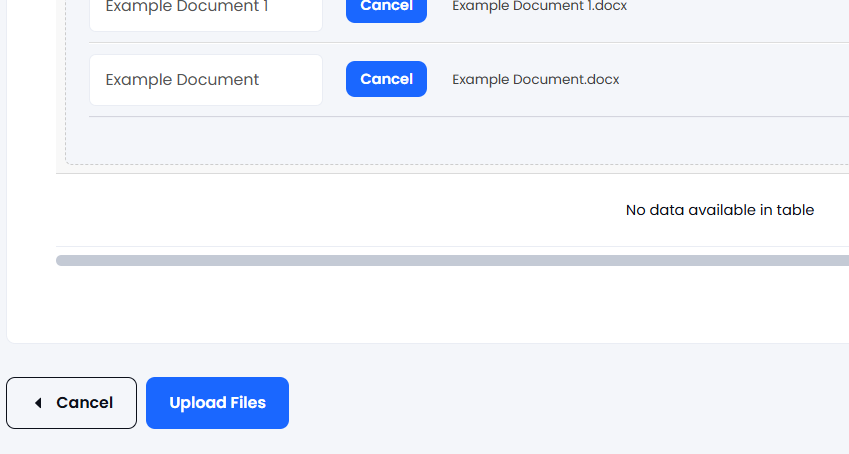
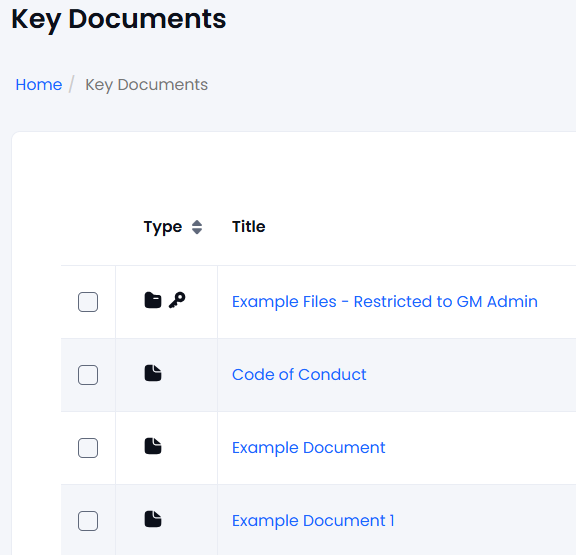
5. The files will appear in the folder.
NOTE: If you need to add any file access controls or lock comments or add approval features this must be done on a file by file basis by selecting the file, then Actions > Edit for each.