When a meeting pack is created it is formed in several sections:-
1. Title and time/date
2. Other useful information (text box)
3. Links to documents stored in Governance Manager.
4. Files added to the pack (not stored elsewhere in Governance Manager).
The advantage to using links to files stored in Governance Manager is that each file has its own comments section and also its own security (meaning that some links in the pack may be restricted).
Sometimes you may want to add a link to a Folder in GM rather than a specific document. You may want to add a link to a document in a PRIVATE ROOM (note that only room members will be able to access it). You may also want to add a link to an external website - the same method applies - just add the full url (e.g. https://www.nationalcollege.com/
Follow the steps below to do this:
1. Go to the folder (or document in a Room) that you want to make the link point to.
2. Get the web address (URL) of the folder or document (at the top of the browser) and copy to the clipboard - it will look something like:
https://governance.nationalcollege.com/sls-gvo090426/folder/76ABC08FA1045D718025768E00361AC6
3. Go to your meeting (via the Calendar or the Meetings folder) - open it and edit it.
4. Go to the 'Add more links' button as if you are adding an existing file in the GM: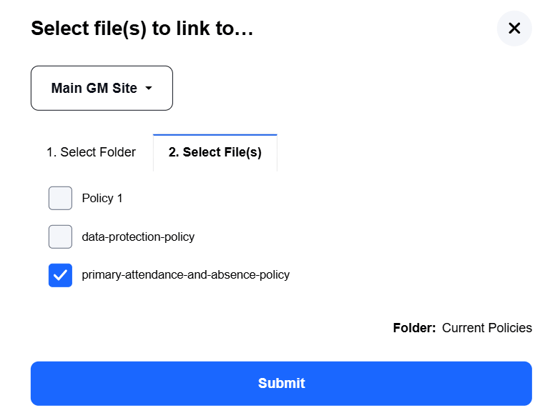
5. You will now have a line in the meeting pack pointing to that file. Enter the address you copied above in the right hand box (paste it to overwrite what is there) and put the wording/title you that this link points to. This will therefore no longer point to the file you selected, but will point to the file/folder from the web address:

6. Save the meeting as usual to make changes. Press Submit.
Please contact the support desk if you need any help.