Admin permissions can be given to users who have responsibility for managing certain processes across the organisation such as adding users, flood filling objectives to staff or running whole staff reports.
There are two levels of Admin permissions:
1. Organisation Permissions
2. Report Permissions
Assigning Admin Permissions
- Click on Admin from the top navigation.
-
Select Users & Groups from the left-hand navigation menu.
- Find and click on the name of the individual you wish to assign admin permissions to.
- Scroll down to the Admin Permissions section.
- Click on the Edit Organisation Admin Permissions button on the right-hand side.
- You can select all or check each required permission individually.
- Note there are two sections: Organisation permissions and Report permissions
ℹ️ Report permissions can only assigned by the Primary User since this gives the user access to all appraisal records for all staff.
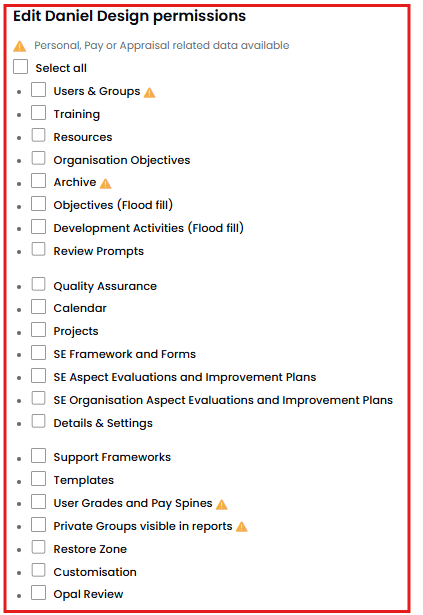
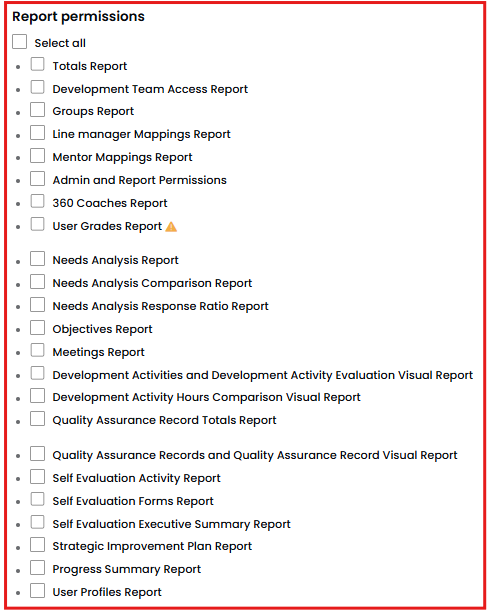
A detailed guide on what each of these permissions allows is available here
- We have flagged (⚠️) the permissions where personal, pay or appraisal-related data will be visible. You'll need to check with your Primary User if you're not sure whether you can or should assign these permissions.
- Once you've made your selection press Save.
- It will ask you to review your selection and to confirm press Save again.
Checking your Admin permissions
To view who has admin permissions:
-
Click on Reports from the left hand navigation.
- Select Admin and Report Permissions.
- This will show you who has access to each of the available admin permissions.
- You can make any changes from this view by clicking on a user's name and editing the admin permissions.
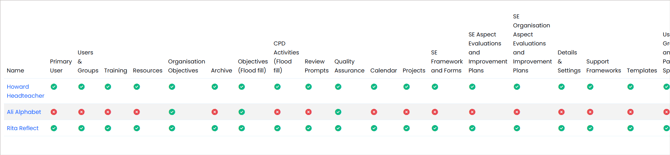
ℹ️ To assign Admin permissions you need to have admin permissions yourself and have access to Users and Groups. If you are unsure, please ask your Primary User.
ℹ️ You can have as many admins as you need, however, we do recommend keeping this number limited in order to limit errors.