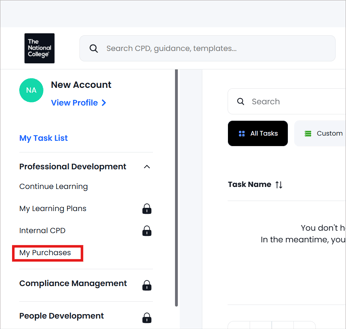
It is possible to purchase Professional Development courses without having a subscription. You can then assign this purchase to another person for them to complete.
Click here to learn how to purchase a course for another person
If you have already purchased content, you can assign it to another user at a later stage:
- Click into your profile via your profile icon in the top right hand corner, or click on 'View Profile' in the left hand navigation.
- A section called 'Order History' will appear in your profile area after you have made your first purchase.
- If necessary, click on the 'View all' link to expand this section to view all purchases.
- Find the course and click on the 3 dots.
- Select 'Assign Users'
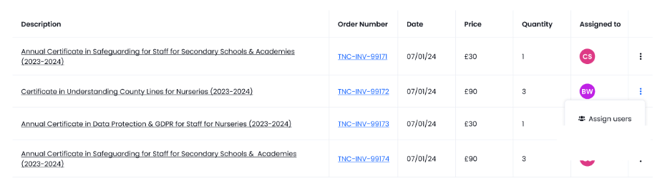
- Select the user(s) you wish to assign the content to. Assignment is limited to the number purchased.
- Click on 'Assign users'.
- The purchased content will be visible immediately under the user's 'My Purchases' section in the left hand navigation.