The Bulk Delete Users feature enables School Group Managers to permanently delete multiple users at once from the 'Manage Users' page.
This can help you to quickly remove users who:
- Have left the organisation
- Were added in error
- No longer require platform access
- Need to be removed during end-of-term clean-up
To carry out a Bulk Delete:
-
Sign into your School Group Manager Account
- Click on Admin from the top navigation
- Ensure 'Group Admin' is displayed in the drop down to the left to work at Group level
- Click on 'Manage Users' from the left hand navigation
- Tick against all users you wish to delete
- Click on the 'Bulk Actions' button:
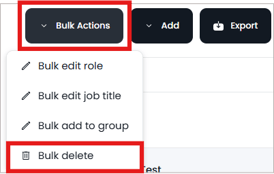
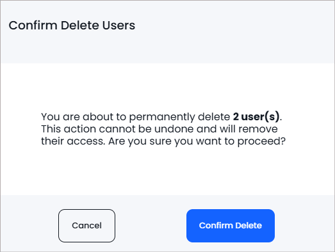
6. You'll be asked to confirm your action
-
-
Clicking 'Confirm Delete' will result in the users being permanently deleted.
-
Clicking 'Cancel' will cancel the action and users will not be deleted.
-
If you need to reinstate a user who has been deleted, please contact us.