The CPD Team review, manage and approve CPD requests across your organisation.
There are two levels of access available for members of the CPD Team:
1. View & comment.
This is useful for staff members who may need to have oversight of staff for example for cover implications.
2. View, comment & make decisions.
This is suitable for those staff who are responsible for approving or authorising CPD requests.
The CPD Team will be notified of any CPD requests via email or in app notifications.
Viewing CPD Requests
- Select 'CPD Team' from within the 'Change' area in the left hand navigation
- You'll see pending requests for the current academic year in order of newest to oldest. You can adjust the filters at the top of the page to see all records.
- You can review the request details, any cost or cover requirements from this view.
- To view each request in more detail simply click into the 'CPD Activity name'.
Managing CPD Requests
Those with 'View, Comment & Make Decision' access can 'Approve', 'Decline', or mark CPD requests as 'Complete'. This can be done on an individual request basis, or in bulk.
Managing Individual Requests:
- Click on the 'CPD Activity name' to view the request
- Use the buttons to the right of the screen to manage the request, selecting Approve, Decline or Mark as Completed / Attended as appropriate
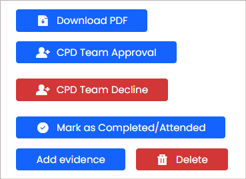
- If Approving or Declining the request you'll be prompted to provide a reason before confirming this decision.
- If Marking as Completed / Attended you'll be prompted to add the completion date.
Managing Requests in Bulk
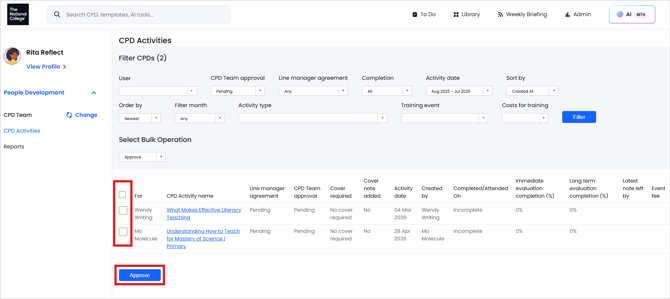
- If there are multiple requests for the same activity or perhaps from the same team you can select multiple activities and manage them in bulk.
- Use the drop down to select the action you wish to apply
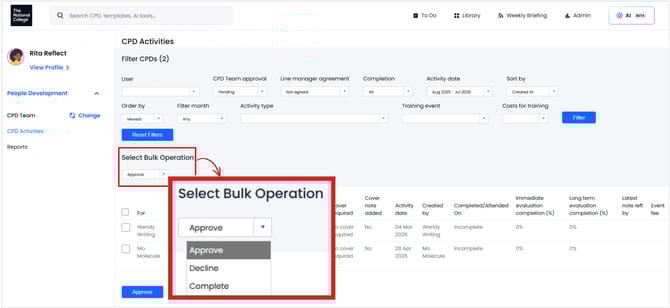
- Use the checkboxes to select all requests that apply to this action
- Click on the blue button to Approve / Decline / Complete
- If Approving or Declining the request you'll be prompted to provide a reason before confirming this decision. This will be applied to all requests selected.
- If Marking as Completed you'll be prompted to add the completion date. This date will be applied to all requests selected.
Editing the approval status
If approval status changes, for example cover implications have changed, the approval status can be edited.
- Find the CPD request that needs amending - you can adjust the filters to show approved / declined requests.
- Click into the CPD Activity name.
- Use the buttons to the right of the record to change the approval status.
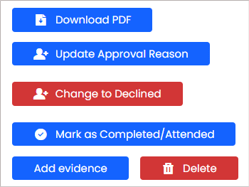
- The status will be updated and the individual will be notified.