When a folder is created there are several options that need to be chosen. If your profile does not allow you to create folders please contact your local GM Manager to create it or agree to 'upgrade' the profile.
Here is a screenshot of the entire set of options, we will cover each of these in turn: 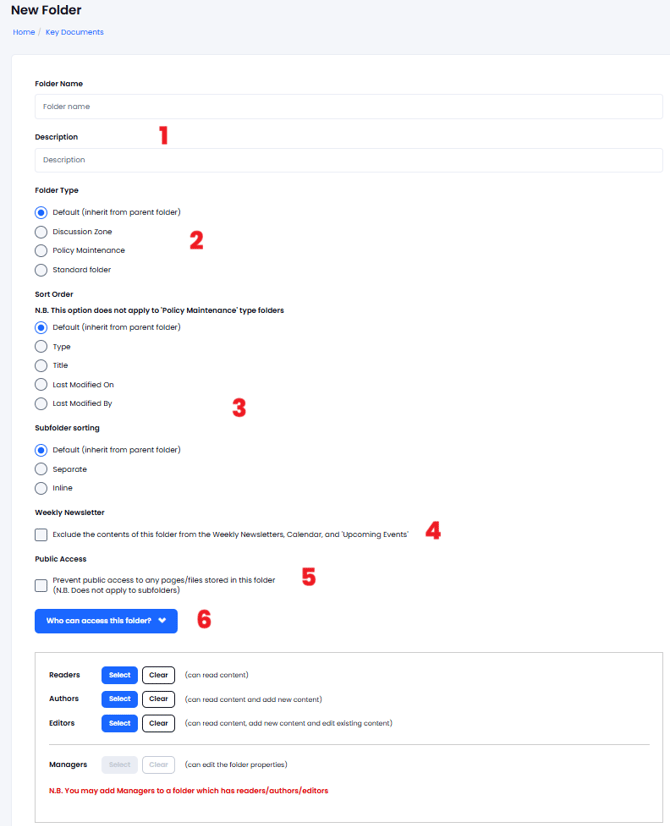
1. The first section of the folder creation is to provide a title and description. Use a folder name and description so other users know instantly what these areas are designed for.
2. The next section is about the type of folder;
-
Default folders will have all the same restrictions from the main folder. If this is the main folder, restrictions will be selected from an area below.
-
Discussions Zone - Are for Discussions (the Actions/New will suggest a new discussion and provide further features specific to these).
-
Policy Maintenance - Are for mainly policies (the Actions/New will suggest a new policy) and the columns displayed will be specific to Policy management.
-
Standard Folders - Are for items such as documents or meetings.
3. The next section defines how the folder is presented in terms of an order, when a user views that folder.
4. The next "Weekly Newsletter" checkbox, determines if items in this folder will be displayed in the weekly newsletter - This is very useful for the 'Historic Policies' folder to ensure that old policies are not flagged as overdue. If the checkbox is ticked, all files in the folder will be ignored when the newsletter is created.
5. The next "Public Access" checkbox, determines if any files in this folder can be published publicly - This is specifically aimed at Policies and is a useful 'switch' for an 'Archive' or 'Historical Policies' folder. If the 'checkbox' is selected then no files in the folder will be published even if they are flagged to be published.
6. The next section determines if the folder has any 'access restrictions' - If it is a sub-folder of a parent folder that already has access restrictions, this section is not available as the folder will inherit the permissions from the parent folder. If the parent folder is unrestricted then the folder can have restrictions applied to limit who can access the folder.
When all the settings have been added then press 'Submit' to create the folder. It is worth a quick check to see if everything is correct - If anything needs to be changed after creation, then use the 'Actions' > 'Edit Folder Properties' to correct it.