There are two ways to create a Calendar Event.
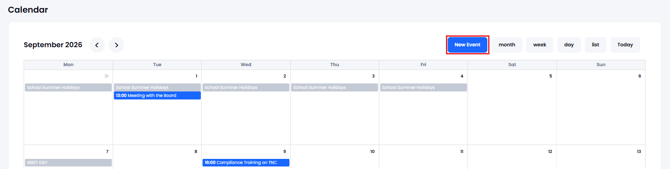
1. Go to the Calendar and select the New Event option (if your user profile allows this - if it doesn't please contact your local GM Manager):
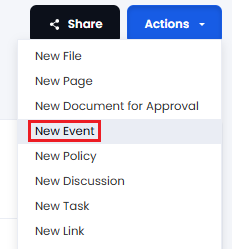
2. In a Standard folder (most folders are standard folders) use the Actions > New Event option (if your profile allows you to create events/meetings):
This will open up the screen to enter all the relevant information about this meeting.
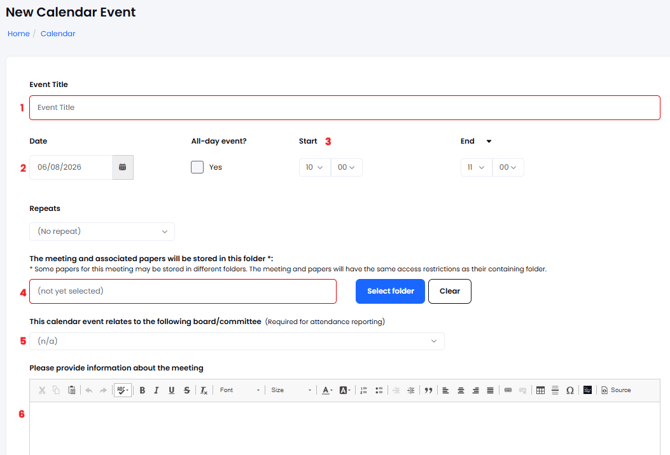
1. The Title of the Meeting (it is a good idea to add the date, the board/committee and the purpose).
2 & 3. The Date and Times of the meeting (please ensure that the end time is after the start time!).
4. The section that asks for which folder to show the meeting or event in (see help on Show in 2nd Location). Use the 'Select Folder' button' to find the appropriate folder (e.g. Home/School 1/01. Meetings (Calendar Events)) - this will allow users to find the meeting via the calendar or via the folder structure. Additionally it is good practice to have all your events in one folder so they are not scattered around Governance Manager.
This action will also mean that this meeting has the same access controls as the folder selected (so, if the folder is restricted the meeting will also have the same restricted access). This is VERY important in a MAT.
NOTE: If you have created the event/meeting from a folder then the 2nd location folder selection will be pre-populated (you can change it).
NOTE: If the event is 'open' for all users (e.g. a school open day) then a second location folder is still needed - the support desk can help to set one up (there are benefits). Having a folder for 'Open Events' that everybody can see can be useful - there could even be sub folders for different open event types as shown below...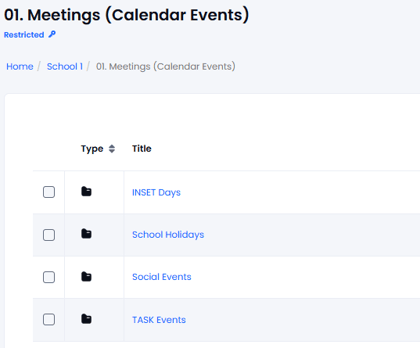
5. The selection asking for which board (and sub-committee) this meeting is linked to is important if you wish to use the Meeting Attendance feature and to generate annual attendance reports.
This is the point at which this meeting will form part of the report for that board or board committee - select n/a if this is not required. The attendance feature uses the 'Board Records' to determine who the board members are and who is on each sub-committee of that board. Other people can be shown on the attendance reports as 'guests':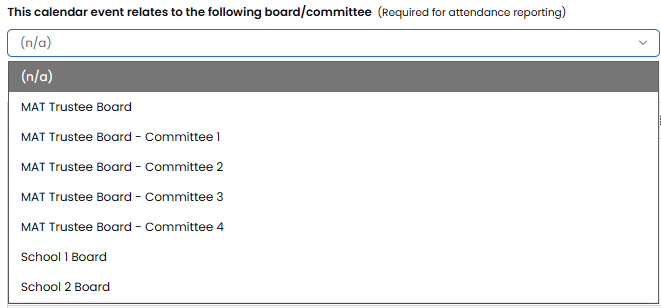
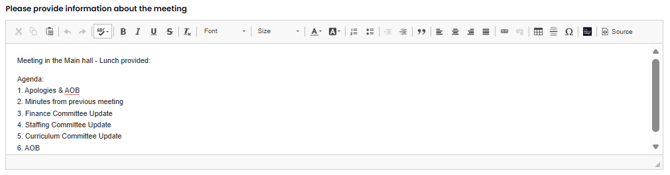
6. Description - this area allows you to add any supplementary information about the meeting:
Adding Files & Links
The next part of the Meeting Pack Creation/Edit screen is associated with creating the 'meeting pack' (the agenda and papers) for a board or committee meeting.
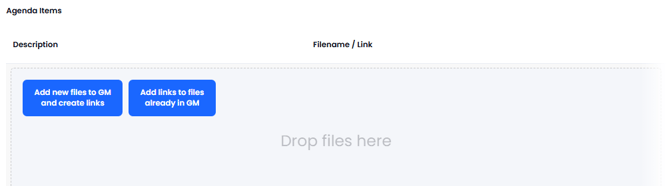
This allows the addition of new files to be added to Governance Manager and link them to this event. Click HERE for a guide on adding New Files to GM.
You may also add links and files to the event which already exist in Governance Manager. Click HERE for a guide on Adding Links.
It is sometimes easier to add the documents into Governance Manager first and then create the meeting pack as a second step.
If you require a 1:1 session on creating the perfect meeting pack please call the support desk on 0333 050 9167 and we can arrange a suitable time.
Additional:
The ability to link this Calendar Event to a Training Course is also possible. This will appear as a 'link' to the course information when the event is viewed.
Click HERE for a full instructional guide on Training Courses.
Note: This option is only available if the Training Records feature has been enabled in Governance Manager and is intended to allow Governors to see who else is attending (there may be several sessions planned for the same Training Course).
Note: Marking your attendance in the Calendar Event does not mark your attendance on the training course for Training Records purposes as you may wish to add a certificate or other documents. After the session you need to add your attendance to the Training Course in the Training Records area.