In this guide we will cover how to
- Create form fields
- Building your form or template
- Delete a custom template
- Switch the default template on or off
- Add and delete custom meeting types
Navigation
-
Click on People Development in the left hand navigation.
- Click into Admin via the top navigation.
- Select Templates from the left hand navigation to expand the drop down.
- From this dropdown you can access the pages relevant to building your template:
i) Form Fields page
ii) Meetings Template page - On both of these pages you will see 3 tabs:

- You will land on the tab labelled with your organisation where you can see any templates created by your organisation if you have created any.
- The default form fields and the template that is supplied with your account can be found under the tab titled 'People Development'.
- You can Archive any fields or templates that are no longer in use. These will appear under the Archived tab where you can reinstate them for use at a later date if you wish.
1. Create Form Fields
- Navigate to People Development > Admin > Templates.
- Select the 'Form Fields' option in the left hand navigation.
-
Click on the 'Create Field' button.
- Select the Field type and click Continue.
- Give the field a name eg 'Achievement status'
- The fields you see next depend on the type of field you chose:
- Dropdown: Add the options you wish to appear in the dropdown, separated with a comma eg Achieved, On track, Attention needed, Not Achieved
- Numeric Score Field: Select the lowest possible score and the highest possible score from the dropdowns
- Dropdown: Add the options you wish to appear in the dropdown, separated with a comma eg Achieved, On track, Attention needed, Not Achieved
- All form fields will have the option to add help text to guide the user.
- Click 'Create'.
- Repeat these steps to create the required form fields.
- Once you have created all of the form fields necessary, you can start to build your form.
2. Building your custom form
- Navigate to People Development > Admin > Templates.
- Select the 'Meetings' option in the left hand navigation.
- Click on the 'Create Meeting Template' button.
- Firstly choose what type of form you are creating, either for Line Managers or Individuals

or
- Fill out the relevant fields within the form
- Name: The name of the Form template that will be visible to users using the form (This is a required field)
- Title: This will initially populate the title of all new Meetings before the user inputs there own title
- Meeting Type: This will initially populate the Meeting Type of all new Meetings
- Guidance: This can be used to provide guidance notes for using this template.
- You are then able to select the following options,

- Template Fields is where you would select which form fields you would like to use. In the bottom right of this section you have two options.

- Add Field: This is where you would add a form field from the previous section, they are ordered with the default people development fields first then the custom ones that admins within your company have created. You are able to make these a required field that the users have to fill out to complete the form.
- Add Aggregate Field: This is where you can add a running aggregate of either a sum or average of selected numeric form fields.
ℹ️ If you have selected to allow users to link objectives to these meetings from the previous option, there will be an option to link the form field to the objectives.
ℹ️ The order that you put the form fields in are the order that they are presented on the form
If you are happy with the form you would tick "Publish" then "Create" in the bottom right.

3. Deleting a custom form
- Navigate to People Development > Admin > Templates.
- Select the 'Meetings' option in the left hand navigation.
- Find the form in question, it needs to be unpublished.
- Click delete on the right side, This will delete the form template but any completions done by users will remain.

4. Switching the default template on or off
The People Development Platform provides a default template for appraisal based meetings. You can choose to keep this available, or you can choose to switch this off.
In order to switch this off, you must have created and published at least one custom line manager-led template.
To switch the default template off ensure you are in the admin area before selecting templates and then meetings from the left-hand navigation bar.
Here you will see a list of your custom templates under your school's tab. Clicking on the People Development tab will allow you to see the default templates available to your organisation. Unticking the box means that users will no longer be able to access the default meeting template. You can switch this template back on at any time.

5. Add and delete custom meeting types
If you are looking to add custom meetings types,
- Navigate to People Development > Admin > Details & Settings
- In the top right click on 'Manage Settings'
- Click into the third tab, 'Meetings'
- From here, you will see any existing Meeting Types
- At the bottom press 'Add another Meeting Type'
- Input the name of the Meeting Type then tick the box and this will be active
If you are looking to delete a custom meeting type.
- Navigate to People Development > Admin > Details & Settings
- In the top right click on 'Manage Settings'
- Click into the third tab, 'Meetings'
- From here, you will see any existing Meeting Types
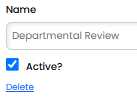
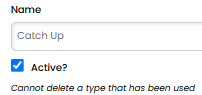
- Underneath the selected Meeting type will be a link to delete, if the type has been used then you are not able to delete it and a note will state that