The Development Team review, manage and approve Development Activity requests across your organisation.
There are two levels of access available for members of the Development Team:
1. View & comment.
This is useful for staff members who may need to have oversight of staff for example for cover or finance implications.
2. View, comment & make decisions.
This is suitable for those staff who are responsible for approving or authorising Development Activity requests.
Assigning Development Team Access
- Click into to Admin.
- Select Users & Groups from the left hand navigation.
- Find and click on the name of the individual you wish to assign the access to.
- Scroll down to the Development Team section.
- Click on the Edit Development Team Access button on the right-hand side.
- Select the level of access you wish the individual to have
- You can apply their specific team title i.e. Development Activities Coordinator if you wish.
- Once you've selected a level, you can choose to Restrict Access if you require
- This means the individual can only manage requests from specific groups.
- To do this select the 'Restricted to specific Groups of Users' option, before selecting the groups you want the individual to be able to access.
- Click Save and repeat the steps above for any other users you wish to give Development Team access to.
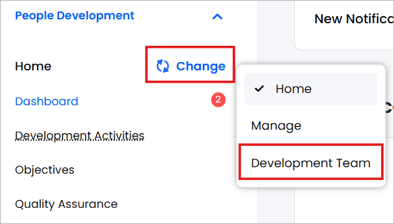
- The individual(s) will now see the CPD Team under the 'Change' menu in the left hand navigation.
Reviewing Development Team Access
To check which users have Development Team access, and at what level:
-
Ensure you are in your Admin area
-
Click on Reports form the left hand navigation
-
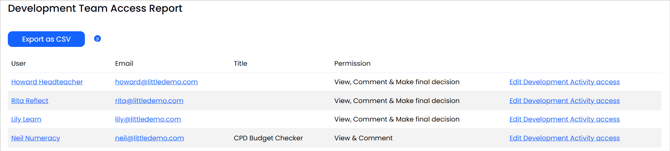
Select the Development Team Access Report
- This report shows you the level of permission and any given titles an individual has within the team.
- You can edit each users permissions using the Edit CPD access link to the right of the report.
ℹ️ You will need to have been granted admin permission to Users & Groups to grant Development Team access.
You will need to have reporting access to view the Development Team Access Report.
If you do not have these permissions and require them, please speak to your organisation's People Development lead or get in touch with our team.