To create custom quality assurance* forms there are up to 4 steps involved:
- 1. Building and / or adding a visual scale
- 2. Creating the basic, foundation sections of your form
- 3. Building custom sections within your form
- 4. Publishing your form so others can use it
Navigation
- Select People Development from the left hand navigation bar.
-
Select Admin from your top navigation bar.
-
Click on Quality Assurance from the left hand navigation bar.
-
From the four drop down options, select 'Forms'.
1. Creating a Scale
The first thing you need to decide is whether or not you want to add a scale or visual response option to your form.
The scale can be as simple as ‘yes, no, or not seen’, or you can create an entire scale with up to 9 values. These values can be numerical, or you can choose to use written descriptors.
To create a scale:
- Navigate to the Quality Assurance Forms page using the steps in the navigation section above.
-
Click into the scales tab and click on the blue 'Create Scale' button from the top right of your screen
-
Give your scale a name
-
Click on 'Add score' to reveal the fields. Use numbers and/or letters to create your scale.
-
Choose the colour for each score
-
Click 'Save' once you're happy with your scale.
ℹ️ Please note that if you choose not to add a scale to your form, a default scale will be automatically applied, but will not be visible when the form is published.
2. Adding the Foundations to Your Form
The foundations are the basic, pre-built elements that you can choose from
-
Navigate to Admin > Quality Assurance > Forms from the Navigation section above.
-
Click on the blue 'Create Form' button.
-
Give your form a name.
-
Decide on the default fields by selecting show / hide for each. Most of these are self explanatory but here is some more detail on some specific fields available:
- Section scores:
If this is set to 'Show' your selected scale will appear by default for each of the custom sections you add. These can be overridden later. - Section comments:
If this is set to 'Show' a free text box will appear by default for each of the custom sections you add. This can be overridden later.
- Section scores:
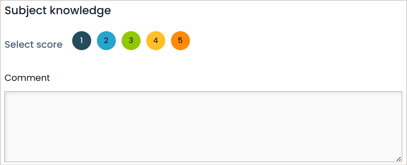
This image shows the custom section titled 'Subject knowledge.
The Section scores and the Section comments are both set to shown
-
- Areas for Audit:
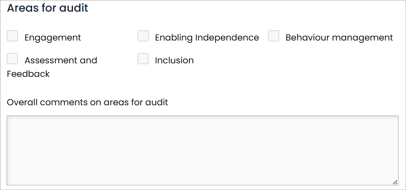
Showing this option will provide tick boxes on the template for the observer to use to identify that an audit area was seen during this quality assurance. A free text box will also appear on the form for the observer to comment on the use of each audit area:
- Areas for Audit:
-
Select the scale you created (or any other scale) by using the dropdown. If you do not wish to use a scale then leave the dropdown set to 'default'.
- If you created a numerical custom scale you can choose whether or not you'd like the form to calculate the combined score.
-
Click 'Save'.
-
You can preview your form so far by clicking 'View' next to the name of your form.
3. Building the Custom Sections
-
Click into the name of your form and click on 'Create Section'
-
Give the section a title i.e 'Pupil Engagement'.
-
You can choose to give the section a description 'Comment on how well did the staff member engaged pupils.
- You then have the choice to ovverride show or hide scores and comments. Leaving the settings as 'Use observation form setting' will follow the show/hide settings
-
Click 'Save' and repeat until you have added all the sections you wish.
4. Publishing your Form
-
To publish your form so it is visible for users, locate it within the list of forms and tick the box under the 'Published' heading.
-
It will now be available in users' Home area under Quality Assurance in the left hand navigation.
ℹ️ Once a form has associated records you can no longer edit or delete the form, but you can un-publish the form which will prevent further use.
* Whilst referred to as quality assurance in this guide your organisation may be using alternative terminology such as monitoring or observations.