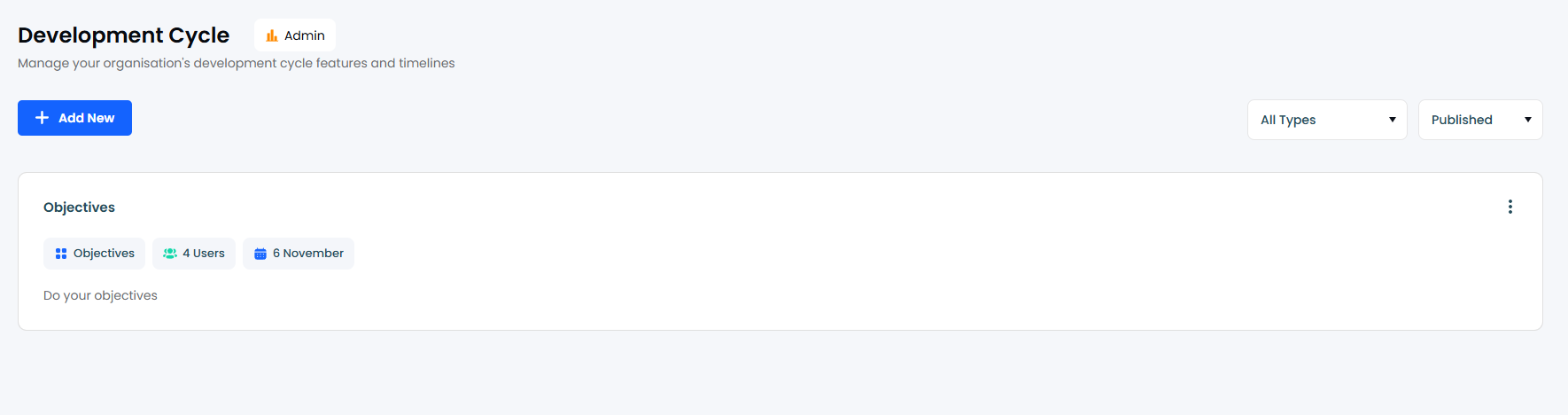
What are Development Cycles?
Development Cycles introduces a dedicated page where admins can construct a roadmap of professional growth. Each "step" in the cycle is a specific activity with a defined type, due date, and target audience. The system then handles the heavy lifting of assigning, tracking, and completing these tasks.
How to create a Development Cycle
- Navigate to People Development in the left-hand navigation.
- Go to 'Admin' in the top right-hand corner of the platform
- Click on 'Development Cycles' on the left.
- To create a new Development Cycle,
- Click
 and then select the type of Development Cycle you are looking to create.
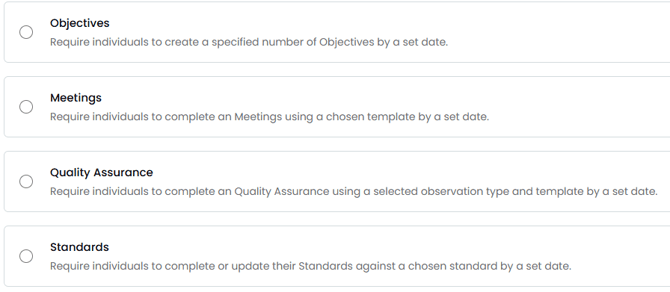
- You can also select the type of cycle that you want to create from the initial page

- Click
Objectives
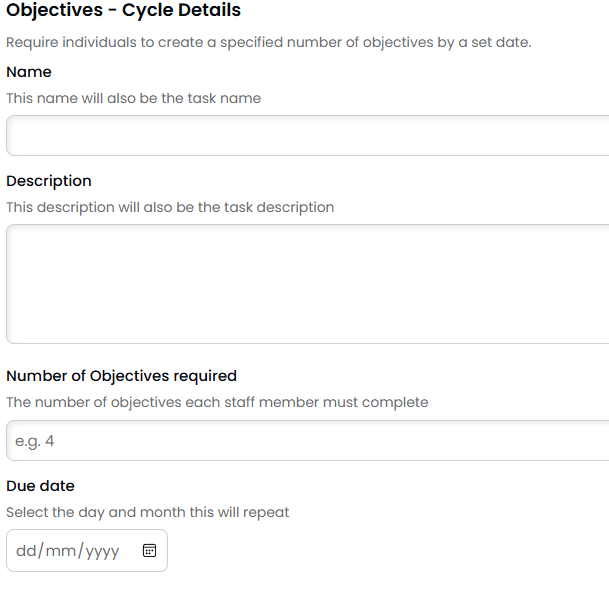
-
Name - The name that will be visible on the task that is generated
- Description - This will be on the task description
- Number of Objectives required - The Number of objectives that each staff member must complete.
- Due Date - When the task will be due.
Meetings
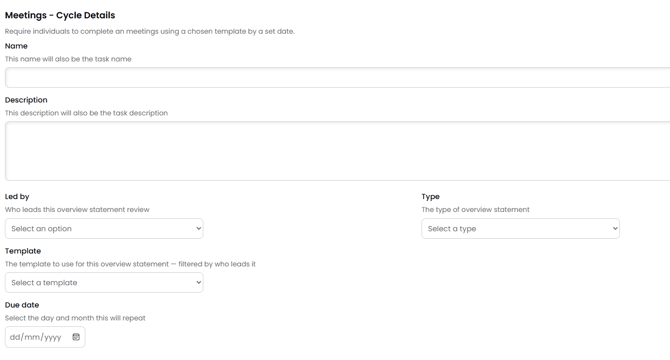
- Name - The name that will be visible on the task that is generated
- Description - This will be on the task description
- Led by - The person that would lead the meeting either the Individual or the Line Manager
- Type - The meeting form that is to be used
- Template - The template to use for this overview statement — filtered by who leads it
- Due Date - When the task will be due.
Quality Assurance
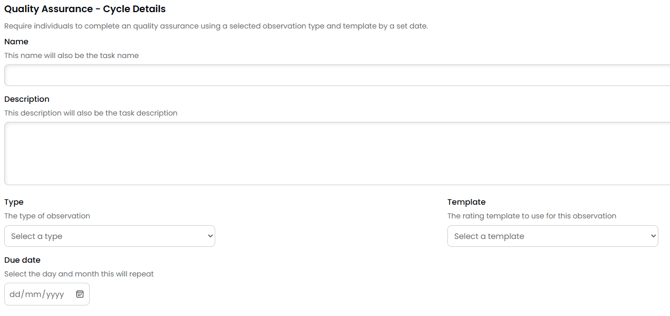
- Name - The name that will be visible on the task that is generated
- Description - This will be on the task description
- Type - The meeting form that is to be used
- Template - The template to use for this overview statement — filtered by who leads it
- Due Date - When the task will be due.
Standards
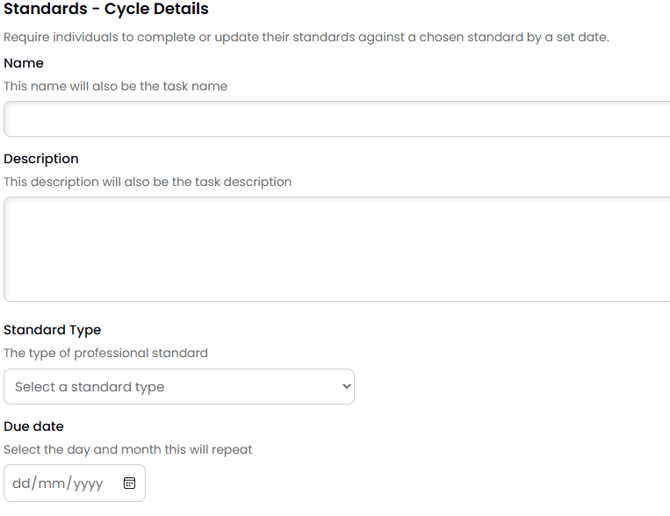
- Name - The name that will be visible on the task that is generated
- Description - This will be on the task description
- Standard Type - Type of standard that you want them to use between National and Bespoke
- Due Date - When the task will be due.
When you have filled out the relevant details for the type of development cycle, press 'Next Step' in the bottom right to move onto the next section.
Assign Users
From here, you can select multiple individual users from the school on the left or you can select a pre-set group on the right.
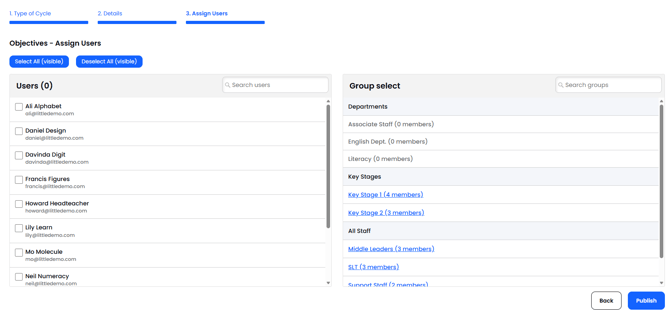
You would then click publish to create the cycle.
This will now sit within this section on the first page if it needs to be edited or deleted.