Governance Manager allows the single Board or Trust Board/Committee structure to be defined and Governance Manager users allocated to each board and committee that they are on.
The system has options for generating reports that can be printed or used offline (perhaps to go on the school/trust/charity website).
To view/edit the board information (for single location or a MAT) use the Users, Boards & Reports > Board Reports to enter the Reporting area:

For a single location GM, the name of the 'Board' will be there, for a MAT the name of the Trust Board and the local boards will be there - at this stage you can click the name of the board to view that board.
In the Reporting screen you can use the various selection options to generate the report that you require.
Options available:
1. Select one, all or some of the boards (in a single location GM there will only be one board listed).
2. Select the dates of office that are of interest.
3. Decide if 'former members' are to be included in the reports (note - this only displays former members who are still in the GM with their user account set to 'Inactive'.
4. Use the 'search' box to select board members that contain the search option
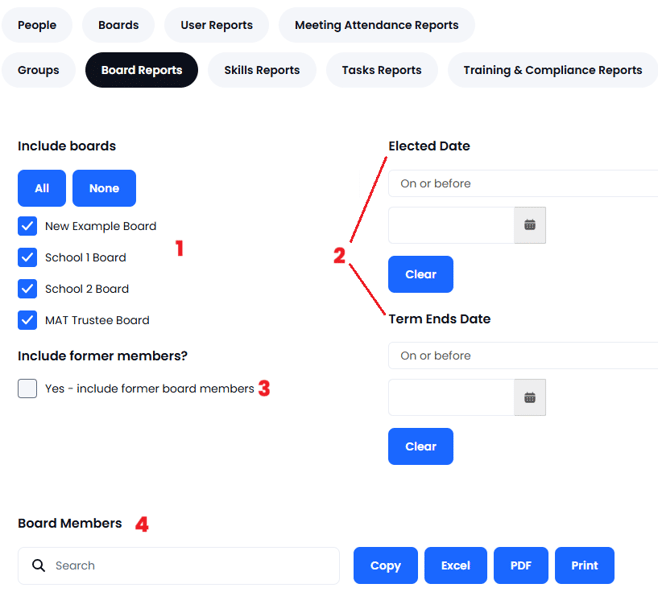
As you make the various selections the report displayed below will change accordingly. Column sorting can be used to format the report.
Note: Former board members (if selected) are shown in brackets and the word 'Former' is inserted in the Type of Governor Column. The user needs to have a GM account - if they have actually left the board then the account is present but in an 'Inactive' state (see user profile options). If their user account has been deleted they are not shown in the reports.
When you have the data that you require for the report, use one of the 4 output options (see below) using the buttons:
1. COPY - this will copy the report data to the clipboard (you can then paste into other applications).
2.EXCEL - this will create an EXCEL file with the relevant data added.
3. PDF - this will generate a formatted PDF document containing the data.
4. Print - this will create a page on your web browser that can be printed.
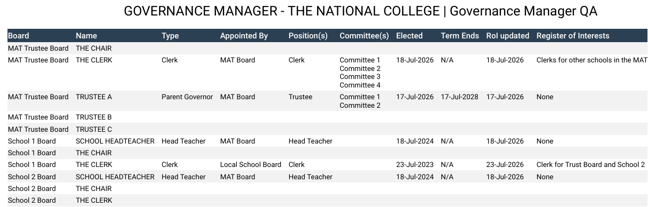
Here is an example from a PDF report: