Governor Resigning or Retiring
When a Governor leaves the board (either through resignation or when the term of office ends) it is good practice to remove their access to the GM straight away. The second part of the process is to remove them from any 'Boards' they are members of (converting them to 'Former Members').
REMOVING GM ACCESS
There are two ways to do this (GM Manager only):
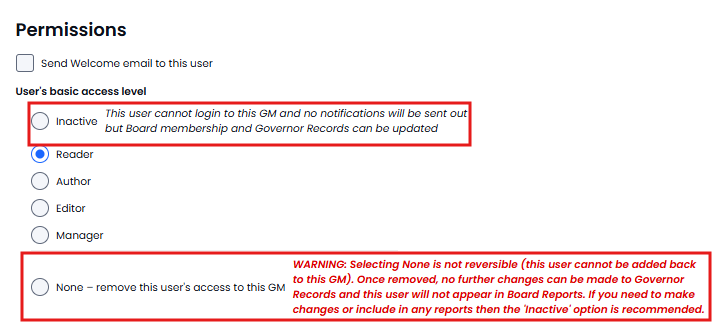
1. Edit their user profile and set the user account status to 'Inactive' - this will prevent them from logging into GM and they will not receive any more GM notifications (Newsletters, Share, Subscriptions etc). When the profile is in the 'Inactive' state Governor Records and Meeting Attendance can still be updated.
2. Edit their user profile and set the user account to 'None'. This action fully removes them from GM and also from many of the available reports.
If a user is fully deleted ('None') in error they cannot be added back using the same email address as GM will treat them as a new user (this is to allow email addresses such as chair@, clerk@ to be used by new people). If you do delete a user (set to None) then you can add them again (set to inactive) and you will need to add them to the board, recreate their board record then remove them from the board - they will appear in board reports.
The options in the profile look like this...there is a checkbox that determines if a 'Welcome email' is sent out (Note: a Welcome email cannot be sent to an inactive user).
REMOVING THE GOVERNOR/TRUSTEE FROM THE BOARD(S)
The second part of the removal activity is to remove the user from the board so they do not appear in any board records or future attendance recording (historical attendance records are unaffected).
To remove the user from the board follow the steps below:
1. Go to Users/Boards & Reporting and select the Board(s) tab

2. Select the board that you wish to remove them from (eg New Example Board)
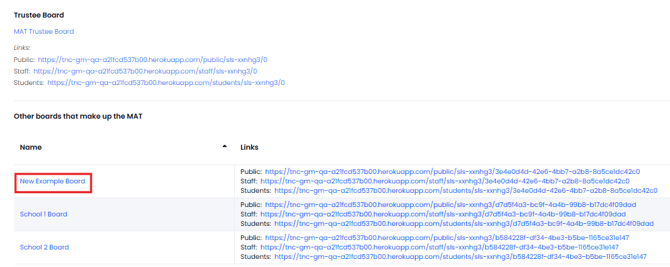
This will display the board members....
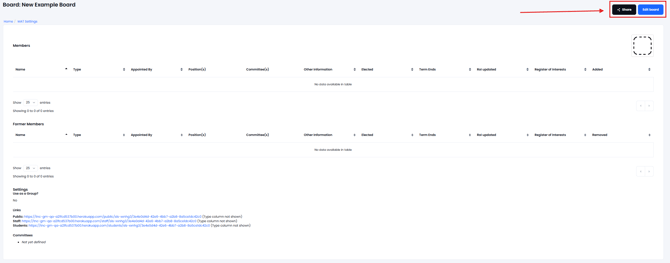
Select 'Edit Board' and deselect the Governor/Trustee you wish to remove using the checkbox (remove the tick)...
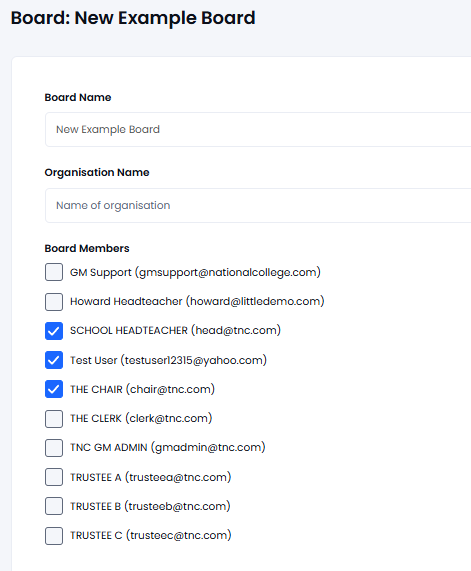
Then press Submit to save the changes
This user will now no longer be shown on any board reporting but will be shown as a 'former board member' if required (reports have options to include/exclude former board members).