The Accreditation Tracker is a feature within the School Admin portal that helps international schools organise, evidence, and track their compliance with external accreditation frameworks.
To navigate to the Accreditation Tracker:
To access Accreditation Tracker you must have access to both Professional Development and Compliance Management subscriptions.
- Log in to your School Manager account.
- Click on 'Admin' from the top navigation.
- Select 'Accreditation Tracker' from the left hand navigation to expand the options.
- Select either 'BSO' or 'CIS'.
- You'll see a list of requirements for the framework you selected. These requirements are mapped resources such as CPD courses, policies and templates that evidence compliance against the framework
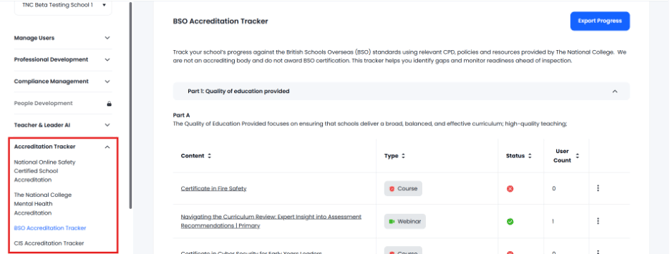
- There are 5 columns within the requirements list:
- Content: Name of the resource. Click on the name to navigate to it.
- Type: Specifies if the content is CPD, Policy or Template
- Status: Indicates current completion state. This will turn green when all users have completed the content.
- User count: Shows the number of staff who have completed or read the item.
- Action menu: The options available when clicking on the 3 dots will vary based on the content type.
Related help guides:
- What is the Accreditation Tracker?
- Working with CPD content in Accreditation Tracker
-
Working with Policies and Templates in Accreditation Tracker
-
How to export progress data from Accreditation Tracker