Some Group Level policies require organisation specific detail to be added or edit to make them fully applicable to each setting.
When creating a policy, a School Group Manager can make the policy amendable if this is the case. The School Manager at each organisation must then amend the policy to accordingly.
-
A task to amend a Group Policy will appear in your Task List:

- To amend the policy click into the task
- Download the amendable policy document
- Details that should be amended to suit your school will appear in blue underlined text.
- Blue bold text and Grey highlighted text should also be checked as per step 3 of the policy directions.
- Once the amends have been made, save a copy of the policy document.
- Attach the policy document.
- Choose from the policy options:
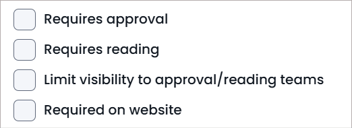
- If selected, the next step is to select your Approval Team if required:
- Click on the users you wish to assign to each team and click on the right pointing arrow.
- To remove users from each team, highlight their name and click on the left pointing arrow.
- If selected, you now need to select the Reading Team:
- Use the radio buttons to toggle between assigning either 'Individual Users' or 'User Groups' as the Reading Team.
- For Individual Users:
- Search, filter by group using the drop down, or select individuals from the left hand column.
- Click on the single, right hand arrow to add the selected individuals to the Reading team.
- For User Groups:
- Use the drop down and tick against all the User Groups you wish to add to the Reading Team
- Once you’ve reviewed the details click on 'Publish Policy'.
- If Reading and / or Approval were required, the team(s) will be notified.