At group level, you will be able to create a ‘Group user group,’ with users across schools.
These user groups can be assigned to a group learning plan.
The user group will also be visible at school level (labelled as a group user group) but only show the users in that school.
How to create a group user group:
- Log into your school group manager account.
- Click on ‘Admin’ shown on the landing page at the top to the left of your profile icon.
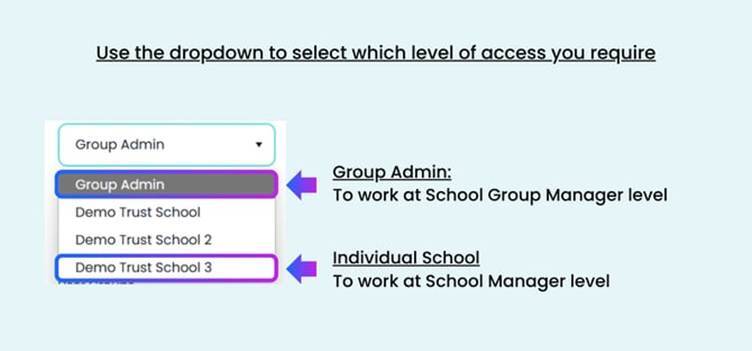
- Select 'Group Admin' from the access drop down in your left hand navigation:
- From under the ‘Manage’ heading in the left hand navigation, select ‘User Groups’
- Click on 'Add User Group'
- Enter a name for your user group.
- Under the 'Available Users' column you will see a list of staff from across all schools.
- Select all the users that you would like to be added to the group being created. Each user will be highlighted.
- To move them to the selection box called 'Users in Group', click the blue single arrow
- If you wish to move all users in the available users box in one go, click on the double blue arrow.
- When you are happy, click ‘Create User Group’ at the bottom of the page
ℹ️ You can remove a user(s) from the group by selecting their name(s) from the right hand list and clicking on the left hand arrow.