Before you can delete a User Group you must first remove each of the individual users within it.
- Click into your Admin area
- Expand the 'Manage Users' drop down in the left hand navigation
- Click on User Groups
- Find the User Group you wish to delete. You can use the search bar to help you find this quickly.
- Click on the 3 dots and click edit

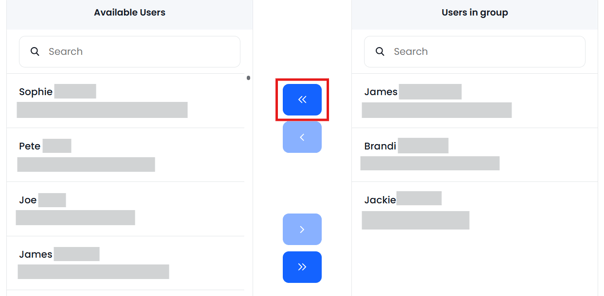
- Remove all members of the User Group by clicking on the left hand double arrow button
- Scroll down and click on Update User Group
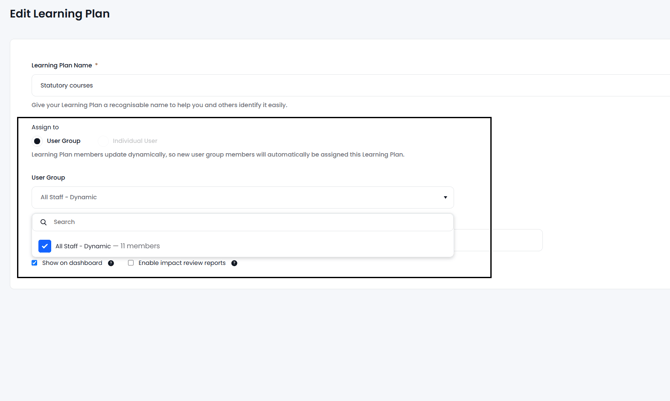
You would then need to either reassign any learning plans its associated with or delete them.
- Go to Manage Learning plans within Admin
- Find the learning plan in question and click on the 3 dots and select Delete to delete the plan or Edit if you want to reassign the plan.
- You can then from here reassign the learning plan to another user group or user.
After the group is unassigned or the learning plan is deleted then the user group is able to be deleted, you would then find the group from the list in user groups, click on the 3 dots and select Delete.