ℹ️ Before you can delete a User Group you must first remove each of the individual users within it.
- Log into your school group manager account.
- Click on ‘Admin’ shown on the landing page at the top to the left of your profile icon.
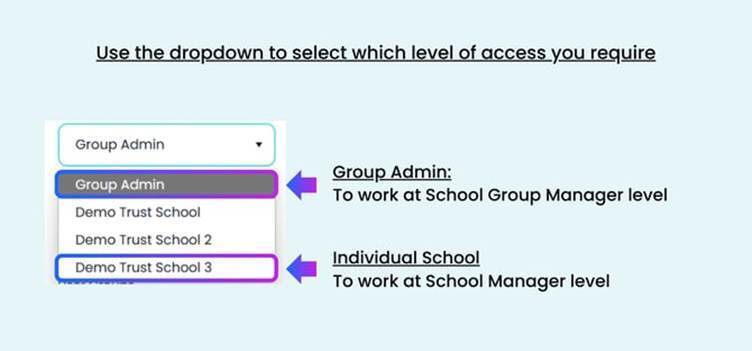
- Select 'Group Admin' from the access drop down on the left hand navigation:
- From under the ‘Manage’ heading in the left hand navigation, select ‘User Groups’
- Find the User Group you wish to delete. You can use the search bar to help you find this quickly.
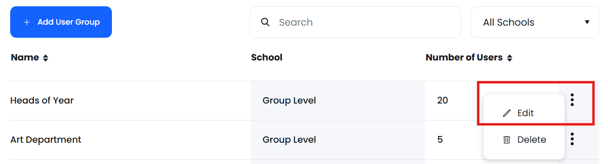
- Click on the 3 dots and click edit
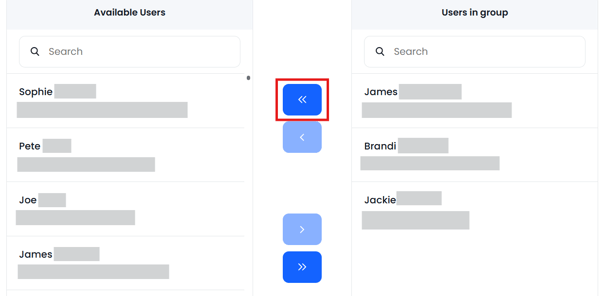
- Remove all members of the User Group by clicking on the left hand double arrow button
- Scroll down and click on Update User Group
- Find the User Group from the list, click the 3 dots and select Delete.