To move a document - or a set of documents (assuming your profile allows this) -
1. Go to the Folder where the document(s) you want to move is/are located.
2. Click to put a check mark in the small square to the left of the document(s) you want to move.
NOTE: You can select multiple documents to move to the same destination folder or go to the specific document to move that document - example here is to move 3 documents:
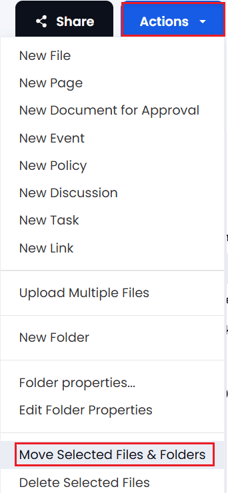
3. Click the "Actions > Move Selected" button:
4. In the 'Move to' pop up window select the Destination Folder you want to put your document(s) into (white folders have sub-folders, black folders do not have sub-folders):
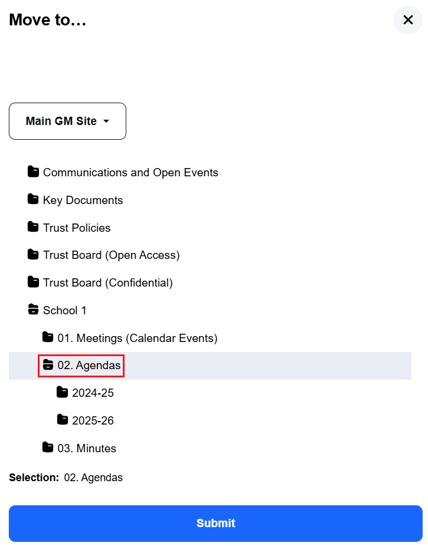
5. Press 'Submit".
The Document(s) will move to the new location.
Note: If you select any Folders as well as documents, ALL will be moved.