To replace with an updated version of a file or rename the title of a document that is already stored in Governance Manager follow the steps below.
Note: The comments will be retained.
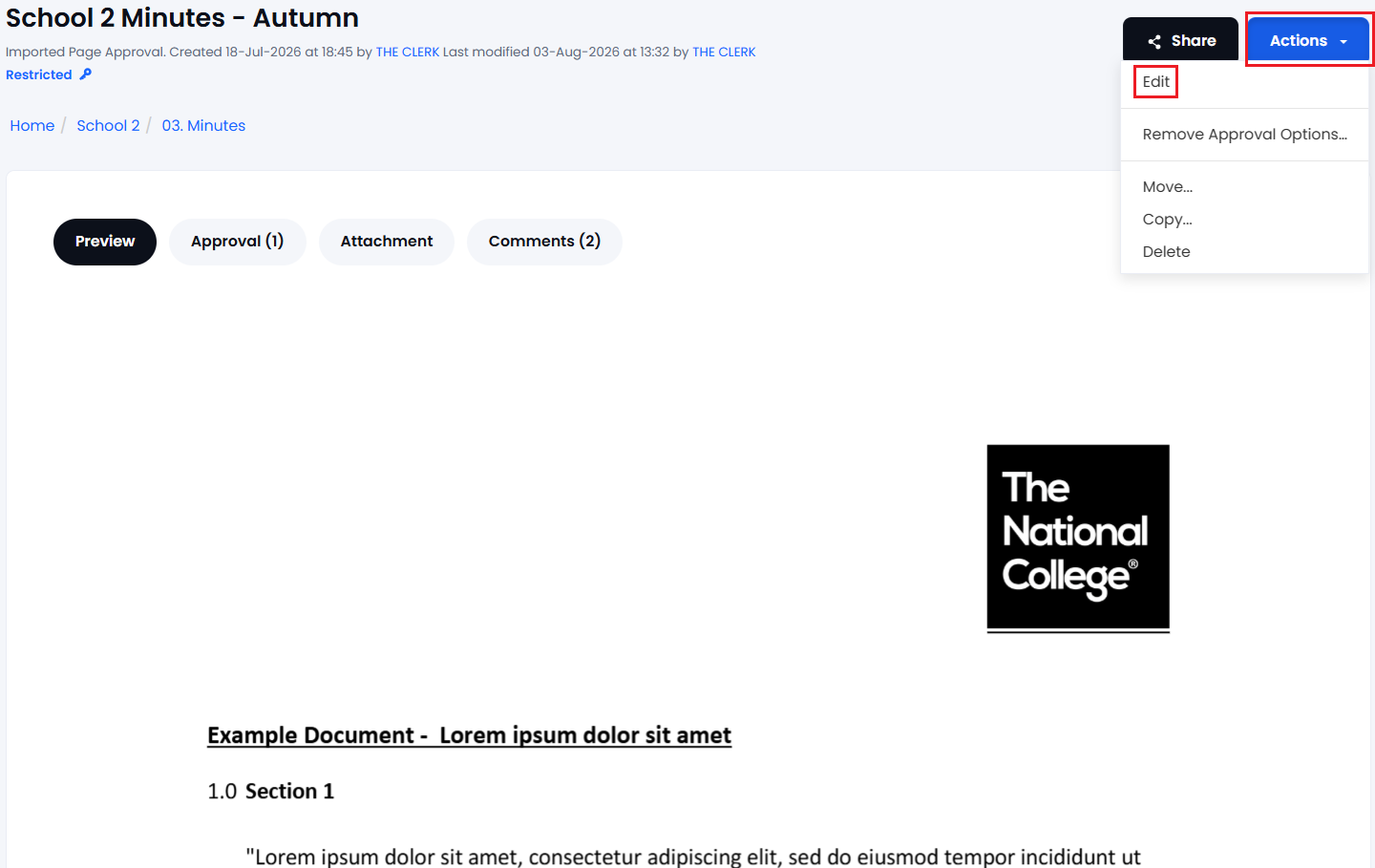
1. Navigate to the document/file you wish to replace or rename - initially this is in 'view' mode. Use the 'Actions > Edit' option - this allows you to change a number of the file attributes:
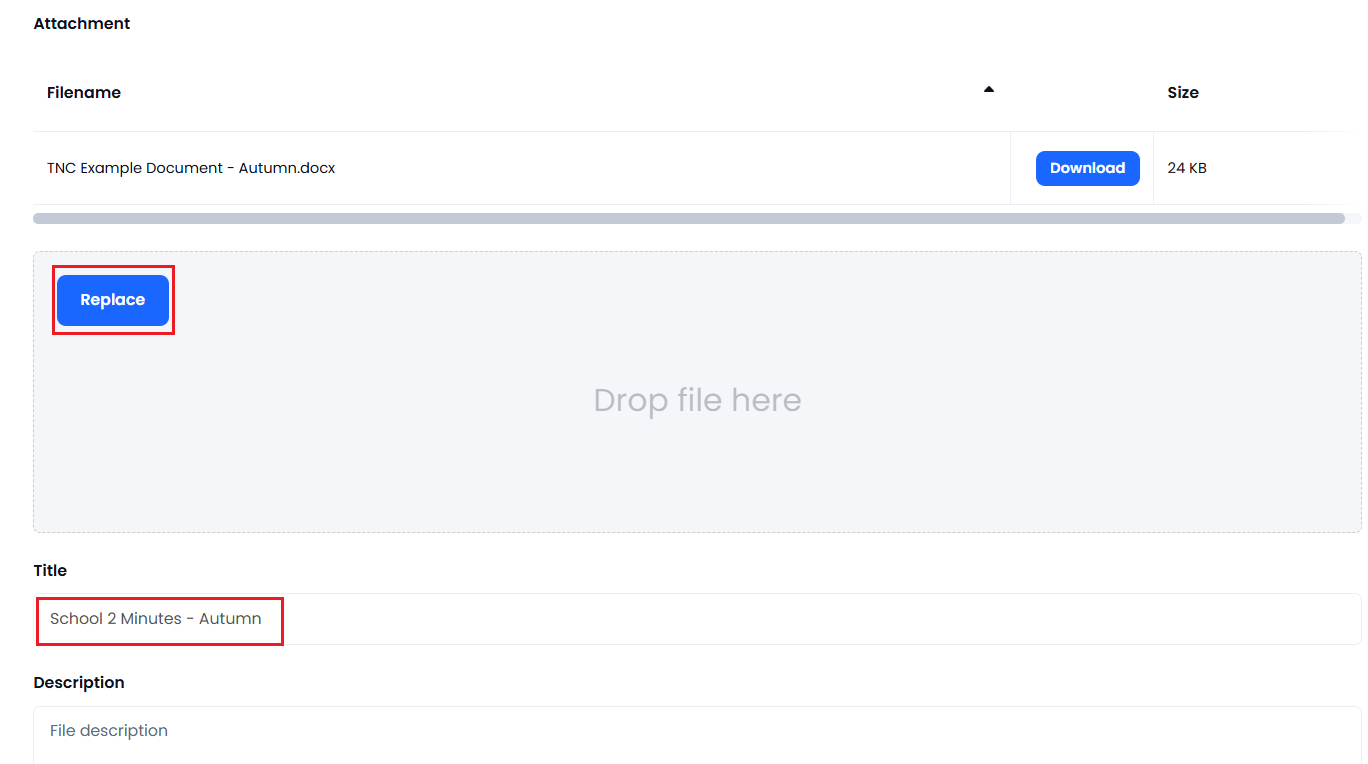
2. Press the 'Replace' button to replace the file with an updated file (This will allow you to select a file from your pc/device) or change the title by adding the new filename in the 'Title' box (just overtype the name):
3. Press 'Submit' and the new file will replace the old one (and the new title will be saved if you changed it)
Note: If you have made a link to this document in a Meeting Pack then the link will still work. If you delete the old document in Governance Manager and add a new document then any links in meeting packs will need to be recreated (as the old links will point to a document that no longer exists).