GM Administration Settings
Each Governance Manager has a local super-user who has the user profile of ‘Manager’. The ‘Manager’ can perform several functions in Governance Manager that no other users (Readers, Authors, Editors) can carry out (including adding and amending user access).
The ‘Administration Settings’ for GM are accessed from the main navigator using the ‘Settings’ link (only visible to the ‘Manager). After any of the changes described below are made then press the Submit button at the bottom of the screen (or Cancel to discard the changes):
The following Tabs and settings are available:

Basics Tab -
This tab allows the enabling and disabling of features in the currant Governance Manager. Including the following options:
Name of the GM Account – this is the text that will appear on screens as users navigate around Governance Manager: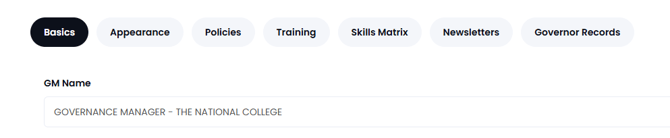
To change the setting for email notifications - one option has all recipients in the To: list (so visible to all recipients) and the other is to have them as Bcc: (so invisible).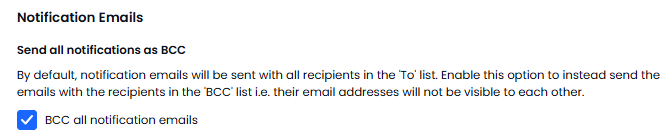
Appearance Tab -
This tab allows changes to how your Governance Manager looks and how areas are sorted, including the most notable option below:
The ability to reorder the main navigation panel. The Calendar and Task links may be located at the top or bottom of the list and the other folders can be ‘dragged’ into any order by using the grey boxes with the three horizontal lines..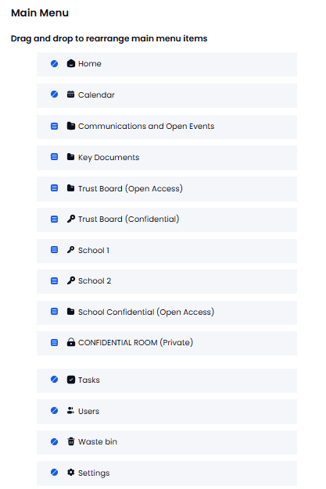
Policies Tab -
Here you may define types of policies and the options for statuses:
List of Policy Types (Found in the Policies Tab) – this allows each policy to be given a category which helps with sorting and searching: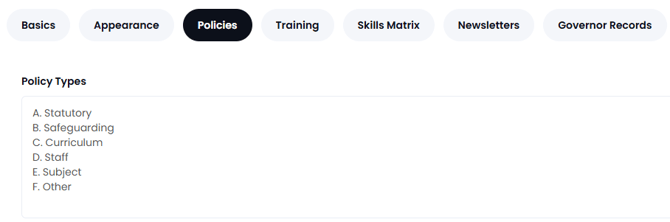
Training Tab -
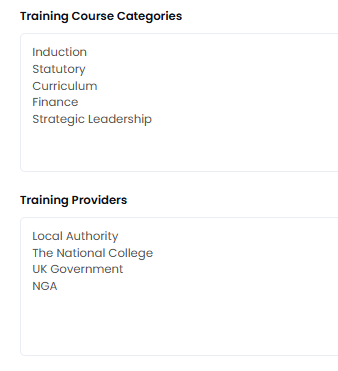
Here you may predefine Categories and providers for courses:
Skills Matrix -
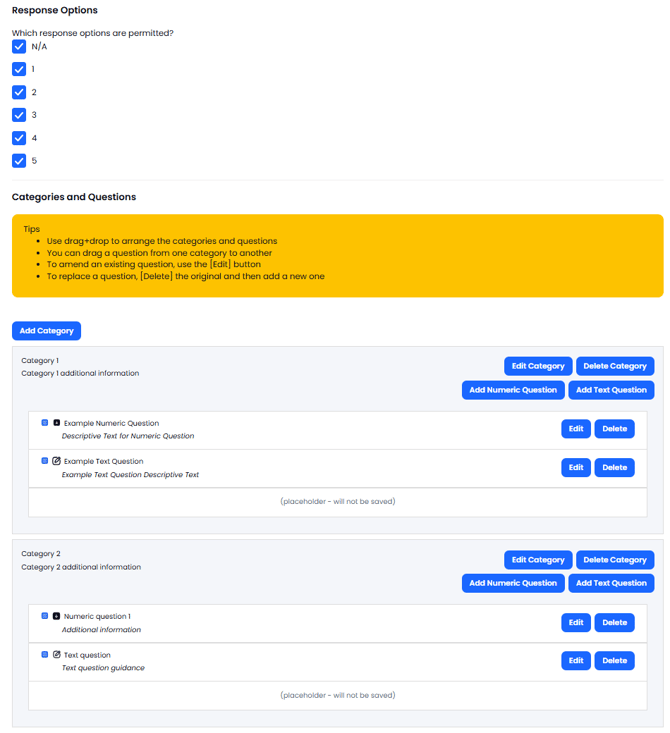
This area allows the customisation of your Skills Matrix, add in options available when responding to statements. Also the ability to add Categories and Statements which are then self evaluated against:
Newsletters Tab -
Newsletter options which include the ability to select when they are sent out and options for content: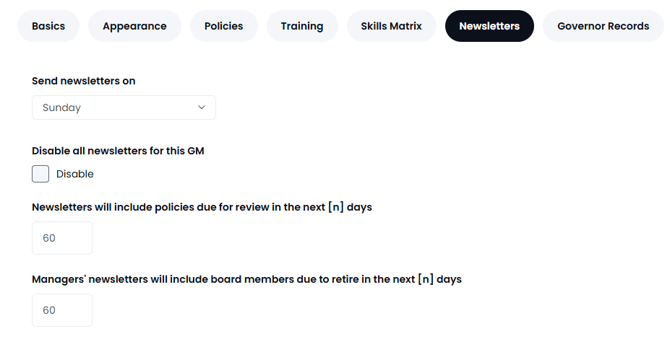
Governor Records -
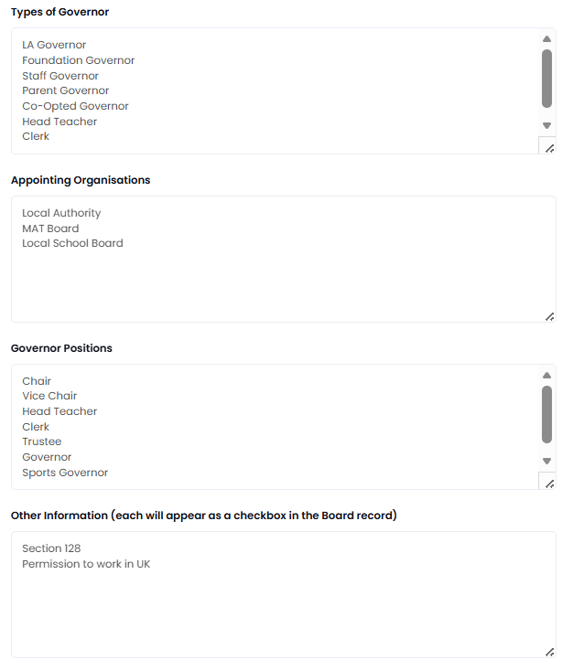
Here you will have the option to pre-define details for Governor Records, how they are categorised in Governance Manager this helps to standardise options and avoid duplication:
To set up the 'master data' for Governor Records. This includes the options for 'Type of Governor', 'Appointing Body' and 'Governor Roles' - these options will be applied to the governor records throughout the GM (either single school or MAT).