NOTE: Only a Manager can create a User Group.
To create a Group use follow the steps below:
- Click on the ‘Users, Boards & Reports’ link on the main navigation panel and then click on the ‘groups’ tab:
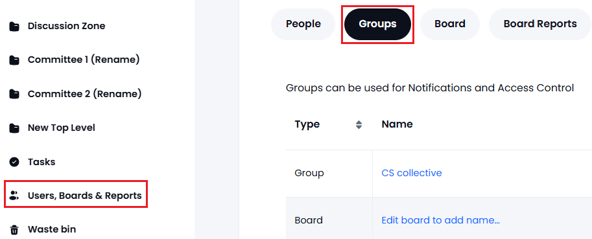
- Click on the ‘New Group’ button (top right).
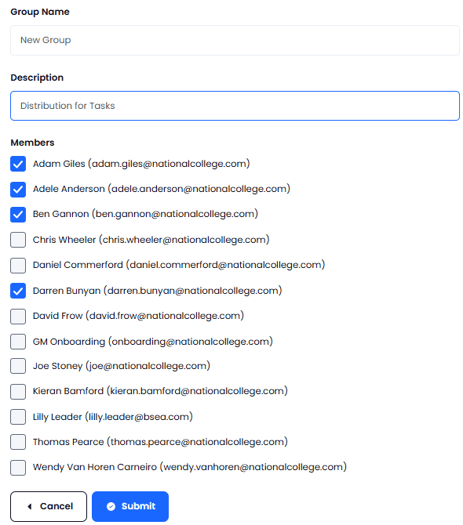
- Enter the group name, group description and tick the ‘check-box’ for each group member. Press Submit to save:
To edit an existing group (to add/remove users) follow the steps below:
- Click on the ‘Users, Boards & Reports’ link on the main navigation panel and then click on the ‘Groups’ tab.
- Select the Group you wish to edit.
- Click on the ‘Edit Group’ button (top right):
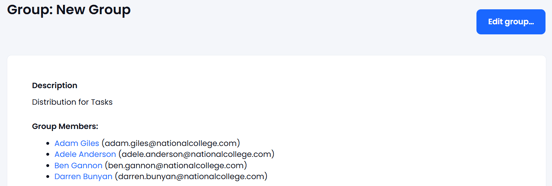
- Add or remove users by using the check-boxes (to delete the group use the ‘Delete Group’ button)
- Press ‘Submit’ to save.