When a user profile is created in Governance Manager there are 5 basic options for the 'access level' of profile:
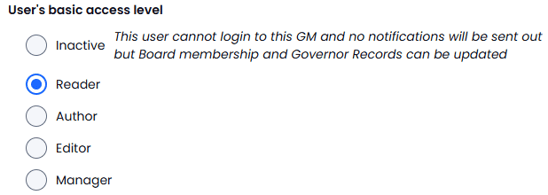
- INACTIVE - This is handy to set things up before the user can access the system and also is used when a user leaves (resigns) - the user cannot sign in and no notifications can be sent to this user.
- READER - A very basic level - The user can only see documents in Governance Manager and cannot 'do' anything (not even comment). This option is very rarely used and is mainly there for Audit or OFSTED users.
- AUTHOR - Most users have this profile. This allows the user to add permitted content (see below) and subsequently edit their own content.
- EDITOR - Typically clerks, chairs & headteachers may have this access level - It is the same as AUTHOR but an Editor can edit material added by other users as well as items added by themselves.
- MANAGER - This is the 'see everything, do everything' profile. Most GM's have one key MANAGER and possibly one or two backup users. The Manager profile can create any type of content and can perform ALL the special actions below as well as having the ability to create and edit user profiles.
A user is given access to create certain types of 'content' - this can be different for each user. The options are:
Pages
Files
Documents for Approval
Links
Tasks
Calendar Events
Discussion Topics
Policies
Folders
Special Actions
Each user can be allowed to perform any combination of the following 'special actions'
The first set of special actions is about the ability to 'move' and 'delete' content:
Move an individual page
Move multiple pages
Copy a page
Delete multiple pages
Move pages between/into/out of rooms (to which they have access)
The next set of special actions is about the ability to subscribe other users to comment and/or approval alerts. This can be handy when one user adds a document but it is another user that needs to see the alerts:
Subscribe other users to comment and page edit alerts
Subscribe other users to approval and task completion alerts
Note: A user with these options can subscribe another user to alerts but CANNOT unsubscribe them - It is the user that must unsubscribe themselves if they no longer want the alerts.
The next special action allows a user to mark a task as completed on behalf of another user - this can be handy when the task owner has had a verbal confirmation of task completion and wants to mark that part as complete:
Mark Task completion for other users
The next special action allows the user to edit the details of any folder they have access to (name, folder type etc) - this option is not often given to basic users and is reserved for clerks, chairs and headteachers:
Edit folder details (NB will also need Editor access)
The next special action allows a user to amend board membership and also declarations of interest for other users - usually this is added to a clerk's profile:
Edit board members (NB only applies to boards of which this user is also a member)
Edit Register of Interests for other users (NB only applies to boards of which this user is also a member) - For this to take effect the 'Edit board members' checkbox must also be ticked.
The next options concern Training Course and Attendance - again, often added to a clerk's user profile:
Manage training course completion (NB only applies to boards of which this user is also a member)
Manage training courses
Note: It is strongly recommended to limit the number of users who can create Training Courses to avoid duplication.
The next special action allows the user to manage meeting attendance for meetings (verification of who attended). This is often given to clerks, chairs and headteachers:
Manage meeting attendance
The final special action is to allow a user to allocate a POLICY or TASK or EVENT (Meeting) to any board in Governance Manager - This is specifically set up to allow non board members (often admin staff) to allocate policies, tasks & meetings to a board or committee. It is the connection to a board that determines where a policy will be published and is keep to Meeting Attendance Reporting:
Link Policies, Meetings and Tasks to any board
When all the necessary options have been selected press SUBMIT to save them (or CANCEL to discard the changes).
Note: There is also a section in the user profile edit where the GM Manager can change the responses to the SKILLS AUDIT.
If you need any help with user profile set-up please contact the Support Desk on 0330 050 9167 or via gmsupport@nationalcollege.com.