Each Room has a list of 'users' - these are the only Governors who can enter the room (even the local GM Manager(s) can be excluded).
When a room is set up one Governance Manager user is allocated as the 'Room Manager' - think of this as a small secret GM inside the main GM. It is the role of the Room Manager to manage the room.
The Room Manager can add Governors to the room -This is a two step process:
1. Add the Governor (and by default they will be added as a Reader).
2. Edit the profile to give them the required role (Reader, Author, Editor, Manager).
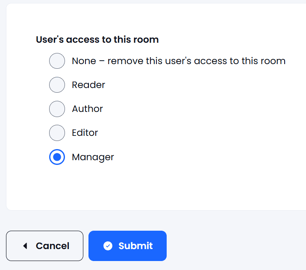
To remove a user from a Room, firstly navigate to the Room in the left navigation, select Room Users on the left, select the User and then Edit. Select the option 'None' and then Submit. This will remove the user from this room - all other GM access is unaffected.
Note: A user can have a different profile in a Room to the one they have in the main GM*. So, as an example, a user can be an Author in the main GM and can be the Manager of the room.
*** IMPORTANT NOTES ***
* If a MAIN GM Manager is added to a room as a Room User they retain their GVO Manager status (so they can see everything in the room) even if their room profile is set to 'author' or 'editor' or 'reader' as shown in the room user list. However, only Room Managers can add/remove/edit room users - so, be careful about confidentiality of documents if a manager is in a room. If you do not want a GM Manager to see documents then they should not be a member of the room (even if this means creating a new room for that purpose).
A room must always have one Room Manager (so for handover you add a new manager then they can remove the old one ...edit their profile and set room access to NONE).
To add a user the manager goes to the room and selects Room Users > 'Add Room User(s)'.
NOTE: It is not possible to add a User Group to a Room.

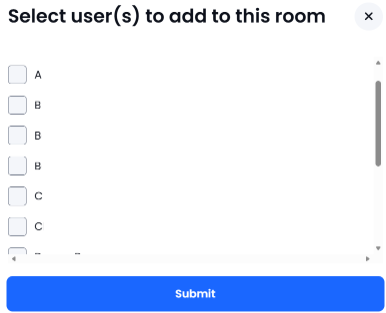
Select the Governors you wish to have access to the room and press Submit:
The Governor will then be added as a reader:
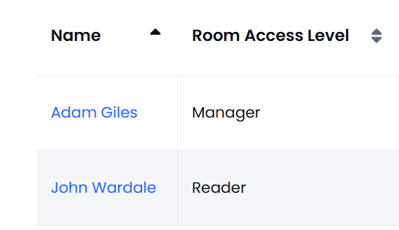
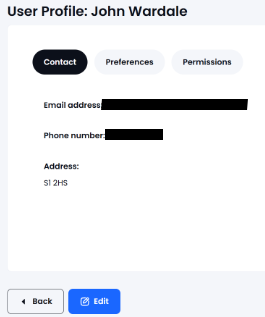
To change the profile of the Governor (just in the room, not in the main GM) click on the users name and then edit as normal. To remove a user from the room just select 'None' as the access level.
To change the role select the required access level and press SUBMIT: