Governance Manager provides a comprehensive 'comment' function for any item stored in the module (meetings, files, pages, policies, discussions, tasks, training courses) - the feature allows for comments and responses and provides a complete 'thread' to be seen against each document - ideal for seeing Governor/Trustee challenge in action!
To add a comment (or reply) to any item follow the steps below.
1. Navigate to the item in question.
2. Depending on the item you will need to click the comment tab (which shows how many comments are already added) or just scroll to the comment area lower down the page. Below is an example of a single file with no comments added.
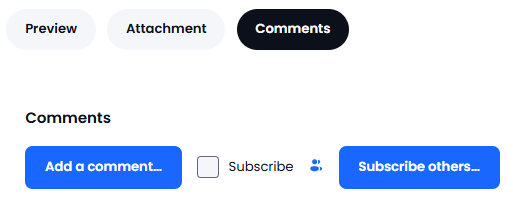
Clicking on the 'Comment's tab opens up the comments area.
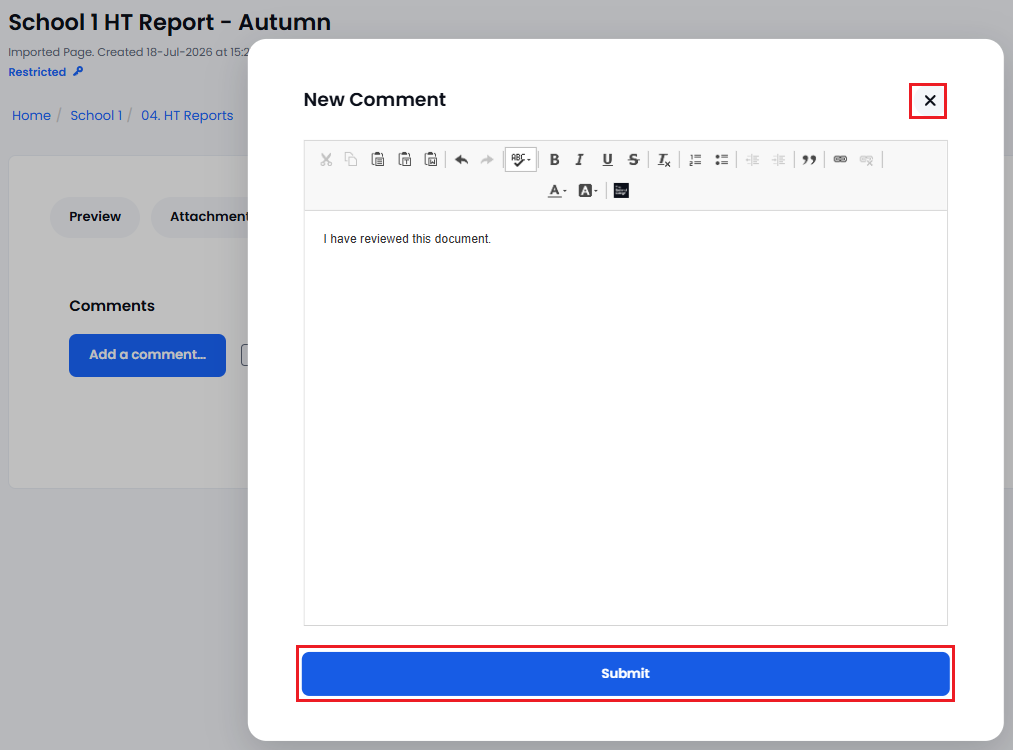
To add a new comment use the 'Add a comment' button as in the above image. A window will appear and allow you to add a comment, once you have written your note, click Submit or Close the window with the X to abandon any changes:
Comments written will appear after a few seconds. As the owner of a comment you have the opportunity to edit* the comment, delete it or reply to a comment. For other people's comments you can only 'reply'. Use the buttons below the comment accordingly:
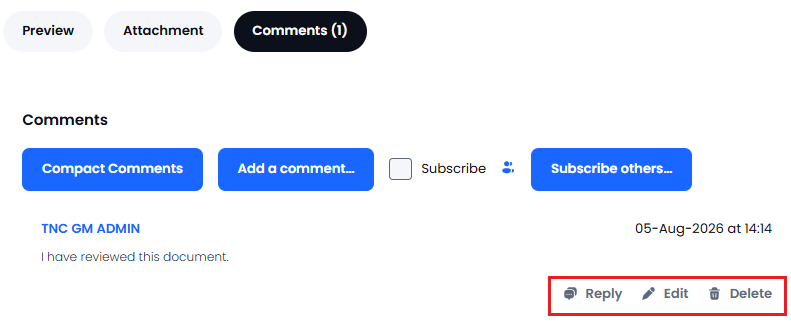
*Note: you can only edit a comment if nobody has already replied to it.
Replies are 'indented' so it is clear which comment the reply refers to.
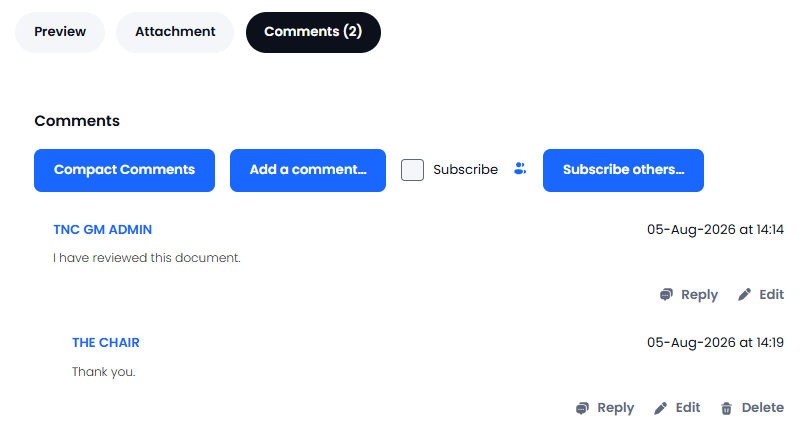
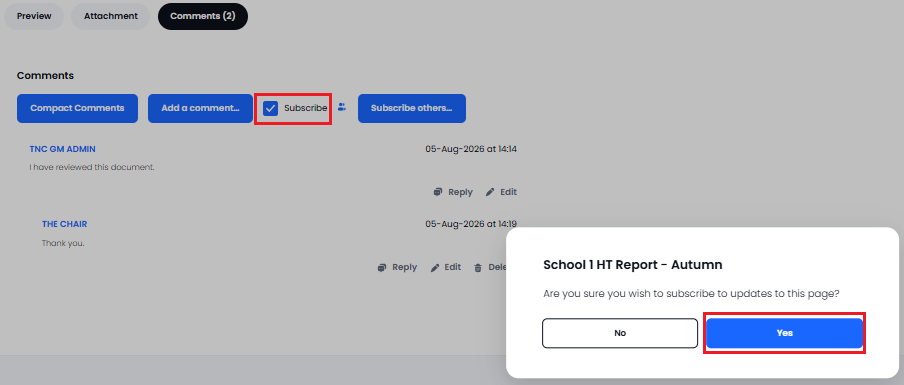
If you are keen to have a notification when other people add comments then use the 'Subscribe' checkbox (you can always unsubscribe if you no longer wish to be notified).
The commenting function is a great way to save valuable meeting time by asking questions and seeing responses for 'low level' points. All the comments form part of the 'Meeting Pack' download so are available during the meeting if required.