Governance Manager allows any document to optionally have 'Approved' or 'Read and Approved' status recorded. This can be useful for minutes of meetings or other key documentation where it is good practice to know that Governors/Trustees have read/approved/accepted the document (eg KCSIE, SFVS, Code of Conduct).
Note: Pages and Discussions are also able to have approval options - CLICK HERE
Governance Manager allows a document to be created with the approval options present and also allows a 'basic' document to be converted to a Document with Approvals.
The ability to create a document with the Approval options available is controlled by your user profile (see help on user profiles) - this can be set by your local GM Manager (GM Managers automatically have this option).
If the option to create a 'Document with Approvals' is in your profile then here are the steps to create a document with approvals switched on.
1. Navigate to the folder where you wish to create the document.
2. Use Actions > New Document For Approval: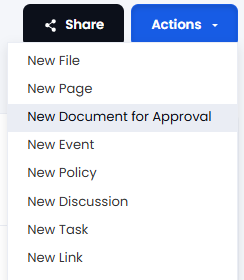
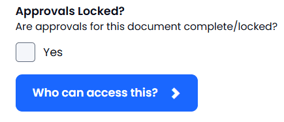
3. This will open up the screen to create (or edit) the document....use the Upload button to add the document from your device, add a title and any description. You will also see the checkbox that can lock/unlock the approvals (for a new document normally left empty):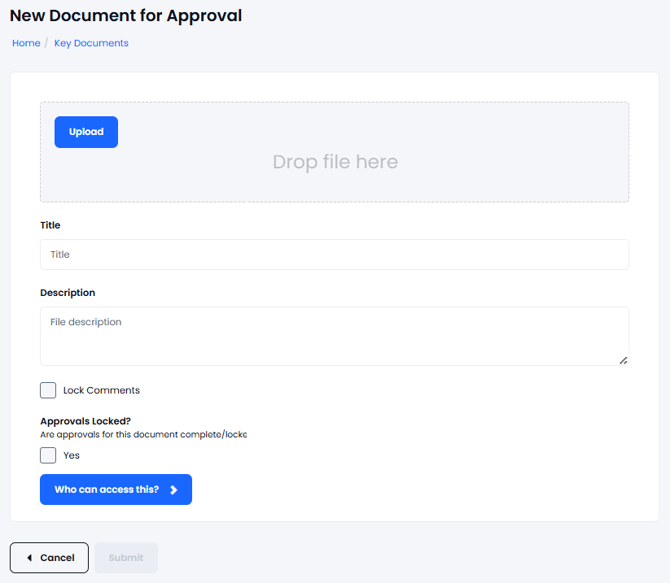
4. Press Submit - the document will then appear like this when users see it in the list of documents in that folder...there is a specific 'thumbs up' icon for documents of this type: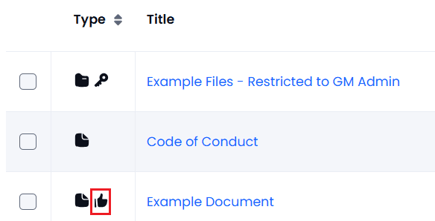
5. Selecting this document provides the normal preview, download and comments functions plus an approval tab. This will allow you to add/remove your Approval/Acceptance and to see the list of people who have Approved it (and when):
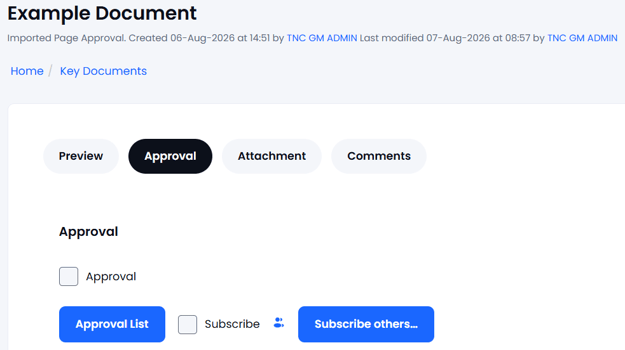
Users will be able to add/remove their approvals unless the document owner has 'Locked Approvals' in which case you are only able to see the list of approvals. If there is an issue you will need to contact the document owner to unlock the approvals temporarily.
To Lock the approvals you edit the document and use the 'Lock Approvals' checkbox and Submit.
The system provides 'approval alerts' to subscribers - the details for this can be found here - APPROVAL ALERTS