It is possible to purchase Professional Development courses without having a subscription.
You can then assign this purchase to another person for them to complete.
ℹ️ Before doing this you must ensure that both you AND the person you are purchasing the course for have set up a Pay As You Go account.
To purchase a course for another person
- Log in to your Pay As You Go account.
- Click on 'Library' in the top navigation and search for the content you wish to purchase.
- Click on the course to review the details.
- When ready, click 'Buy now' to check out immediately, or if you wish to browse additional content click 'Add to basket' and then click on the basket icon in the top right hand corner to purchase.
- Click 'Proceed to checkout'.
- Use the switch to toggle between invoice or card payment.
- Complete the necessary fields.
- Tick the box titled 'I am purchasing CPD for another person'.
- Review the terms and conditions and tick the box to confirm your agreement.
- Click 'Complete checkout'.
Assigning the content to another user:
After checkout you will have two options:
1. Assign Items:
A modal will open on screen to allow you to select and assign the content to the users straight away
2. Assign Later
The dialogue box will close and you can assign the content later via the 'Order History' section of your Profile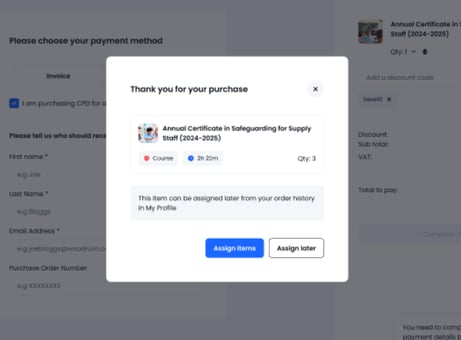
1. How to assign immediately
-
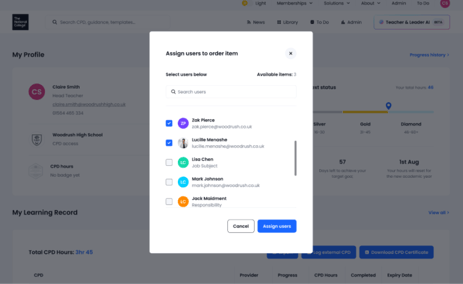
Click on the assign items button from the dialogue box
- Select the user(s) you wish to assign the content to. Assignment is limited to the number purchased.
- Click on Assign users
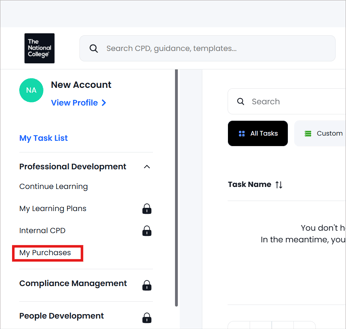
- The purchased content will be visible immediately under the user's 'My Purchases' section in the left hand navigation.
2. How to assign later
- Click into your profile via your profile icon in the top right hand corner, or click on 'View Profile' in the left hand navigation.
- A section called 'Order History' will appear in your profile area after you have made your first purchase.
- If necessary, click on the 'View all' link to expand this section to view all purchases.
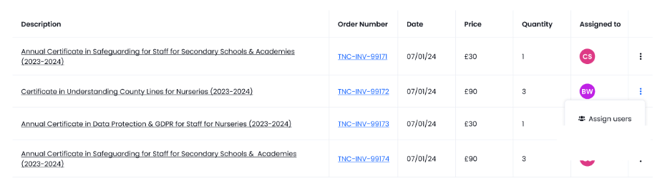
- Find the course and click on the 3 dots.
- Select 'Assign Users'
- Select the user(s) you wish to assign the content to. Assignment is limited to the number purchased.
- Click on 'Assign users'.
- The purchased content will be visible immediately under the user's 'My Purchases' section in the left hand navigation.