Individual school level
- Navigate to admin in the top right hand corner of the platform
- On the left hand menu, go to 'Organisation Settings'
- Scroll down to the 'Sensitive Content' section
- By default this will be OFF
 , when the function is OFF then there is no restrictions in the library.
- If you toggle it ON
 , you have two options.
- You can turn it ON with no exceptions
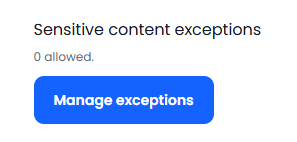
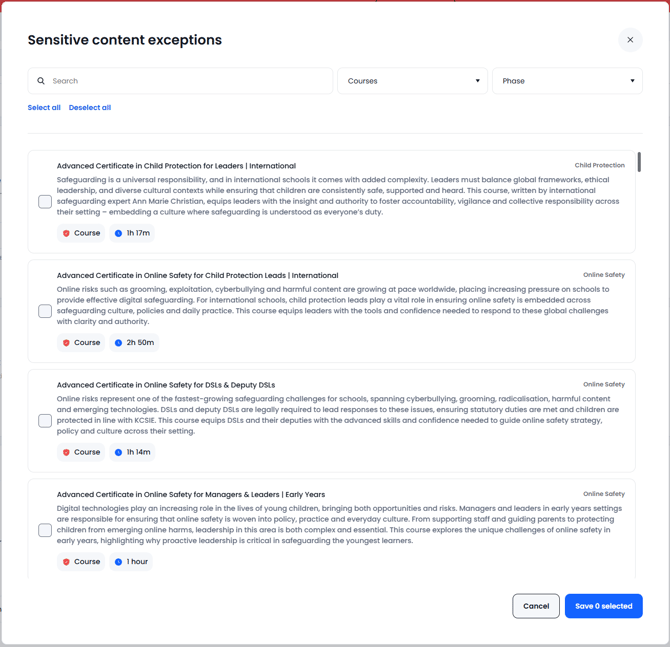
- You can turn it ON then click on the 'Manage Exceptions' button to the right hand side. This will bring up a list of courses which you can select to omit from the hiding of content.
Group Level
- Navigate to admin in the top right-hand corner of the platform
- On the left-hand menu, go to 'Group Settings'
- Scroll down to 'Sensitive Content'
- From here, you have a drop-down with three options
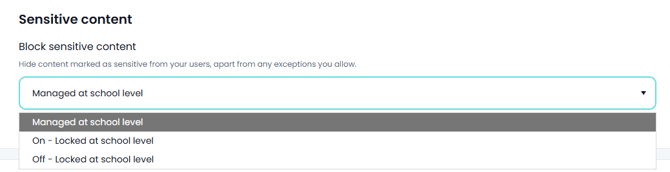
- Managed at school level - The schools manage this option themselves
- On - Locked at school level - Forces the schools to have the toggle on, with no ability to change it.
- Off - Locked at school level - Forces the schools to have the toggle off, with no ability to change it.