The Task Admin area provides School Group Managers with clear visibility of staff task progress. It enables monitoring of completion, overdue items, and overall engagement with assigned tasks.
➡️ Personal tasks created and assigned by a user to themselves are not included in Task Admin.
➡️ The figures only reflect tasks assigned by a School Group Manager or a School Manager.
➡️ Task Admin can be viewed by Users or by Tasks. This guide focuses on the Task view.
Navigating to Task Admin:
-
Click into 'Admin' to the left of your profile icon.
-
Ensure 'Group Admin' is visible in the drop down to the left of the page.
- Locate 'Task Admin' from under the 'Manage Users' heading in the left hand navigation.
- The page will land on the user view by default. Use the switch in the top right hand corner to switch to Tasks view:
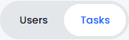
Tasks View
-
Viewing by task focuses on progress across a particular task.
- It displays a list of all tasks assigned to all users across the Trust, alongside the completion status.
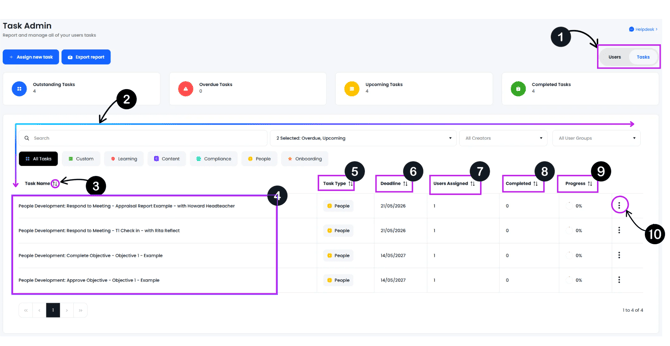
Adjusting the filters
-
The results will reflect any filters applied (see 2 above)
- For example, if the content filter is applied:
- Only content tasks will appear in the list.
- The numbers displayed will reflect only content tasks.
Task Actions
Each task type will have different actions available when you click on the 3 dots: 
| View Report: | Opens the Learning Plan report. |
| Edit Learning Plan: | Opens the edit page. School managers without permission to edit trust-level plans will see an access error |
| Task Details: | Opens a pop up showing the task details. |
| View Report: | Opens the policy overview page. |
| Task Details: | Opens a pop up showing the task details. |
 and
and 
| View User Progress: | Opens a pop up showing progress for all assigned users (see fig. 2) |
| Task Details: | Opens a pop up showing the task details. |
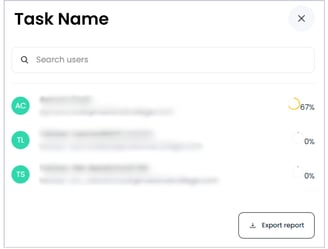
Fig. 2
Exporting the Report
-
You can export the report as a CSV file.
-
The export will reflect the current, filtered view
-
Click on the 'Export' button

-
Once the export is complete it will be emailed to you
Assigning a New Task
The Assign New Task button  allows you to assign learning, compliance, content or custom tasks depending on your subscription.
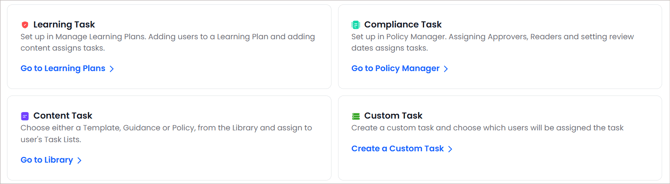
See relevant guides in our help centre for each function:
Exporting the Report
You can export the report as a CSV file. The export will reflect the current, filtered view
-
Click on the 'Export' button

-
Once the export is complete it will be emailed to you
User view
Task Admin can be viewed by task (as above), or by user.
Click here to access guidance on using Task Admin in User view.