Upload a single file from your PC or tablet to Governance Manager.
Before you begin
- Maximum file size: 35 MB
- You must have permission to upload files to the selected folder.
- To upload multiple files, see Add Multiple Files.
- If you need to send the document for approval, you can either:
- Add approval after uploading (see Document Approval), or
- Select Document for Approval from the Actions menu during upload (if your permissions allow).
Upload a File
- Navigate to the folder where you want to upload the file.
- Click Actions and select New File.
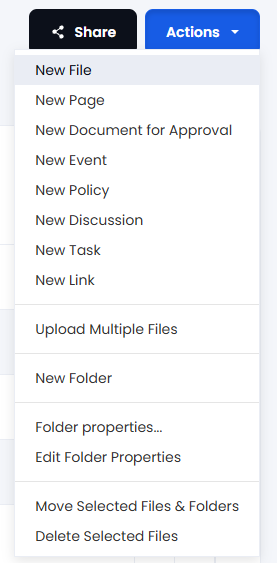
- Click Upload and browse to the file you want to add.
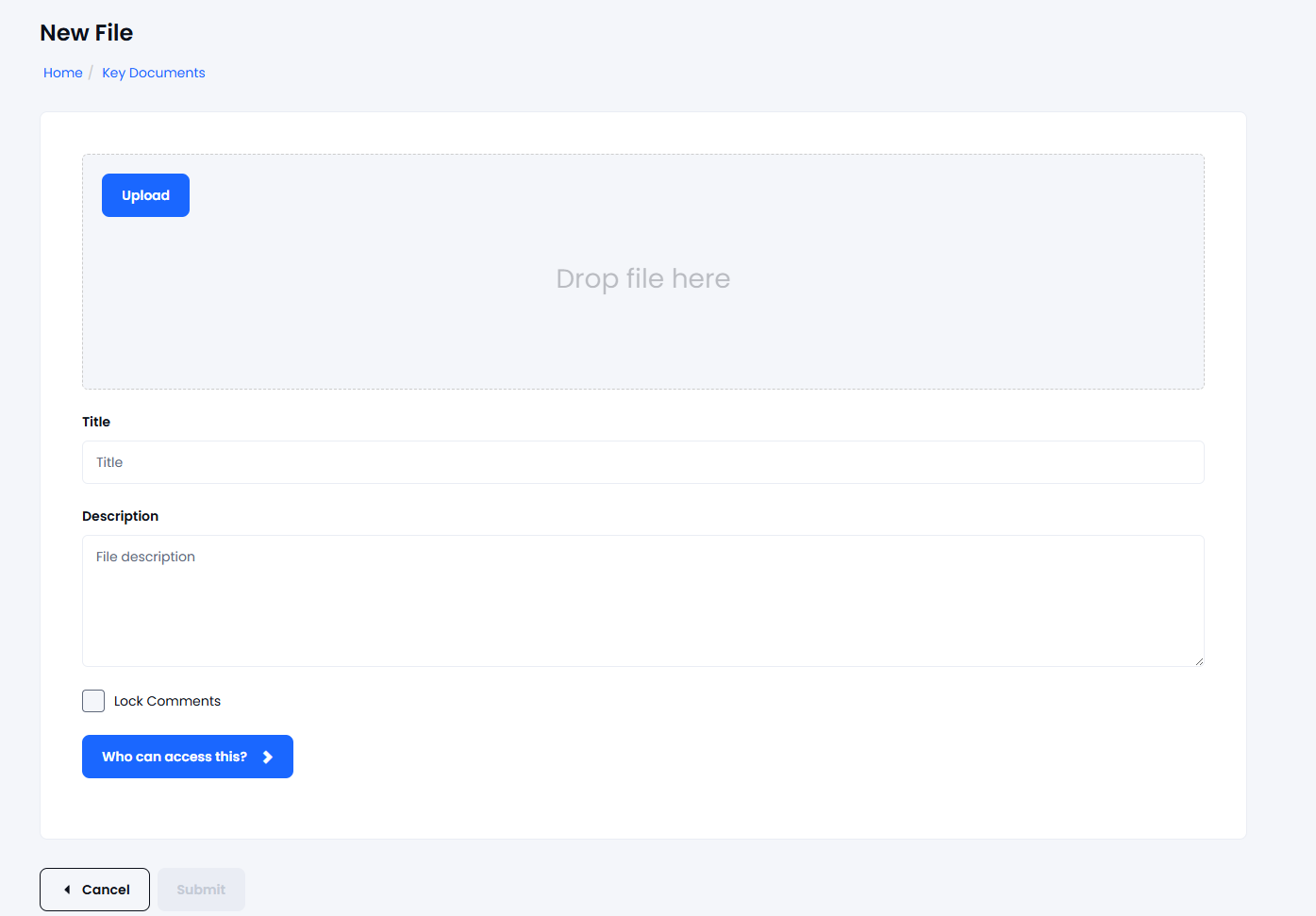
- (Optional) Edit the file name before uploading.
- Click Submit.
The file will be added to the selected folder and will appear in the file list.
Troubleshooting
I can't see the New File option
If New File is not available, either:
- Your user profile does not have permission to upload files, or
- Uploads are restricted for that folder.
If you're unsure, contact your local Governance Manager admin.
Important Information
Password-protected files
Files that are password protected:
- Do not display a preview in GVO.
- Are not included in Meeting Pack downloads.